12. CAN Sniffer
#What it is
The sniffer shows, in real time, the frames that pass through a CAN port of the VCU: the ones that arrive and the ones the VCU itself transmits. It works in parallel with normal communication and does not change the port configuration: the VCU keeps acknowledging and transmitting its frames.
It is the tool for answering questions such as: is the module transmitting? On what ID? With how many bytes? Is the VCU really sending the frame I configured? Which byte changes when I move the lever?
In version 3.0 the sniffer exists on the FT700 (Ports A, B and C) and on the FT470 (Ports A and B) and works with the VCU connected.
#Where to open it
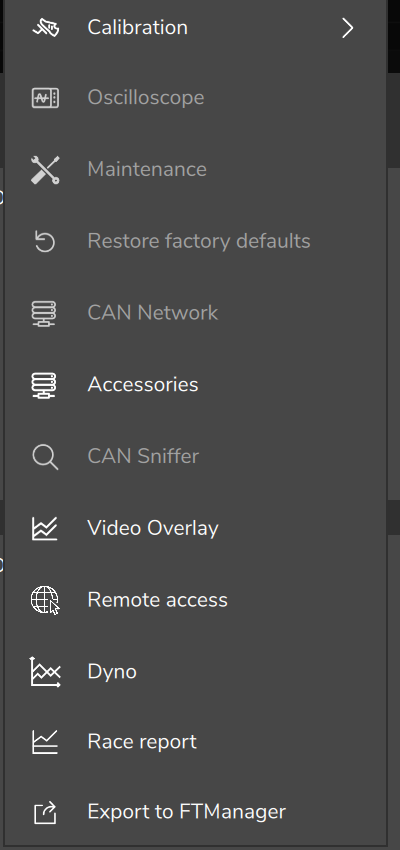
- In the desktop software: Tools > CAN Sniffer, in the top bar. The screen opens in its own tab and is only available with the VCU connected. Closing the tab turns the sniffer off.
- On the tablet and on the VCU's own screen (display): Diagnostics > CAN Sniffer menu. The mobile app does not have the sniffer.
#Controls
| Control | What it does |
|---|---|
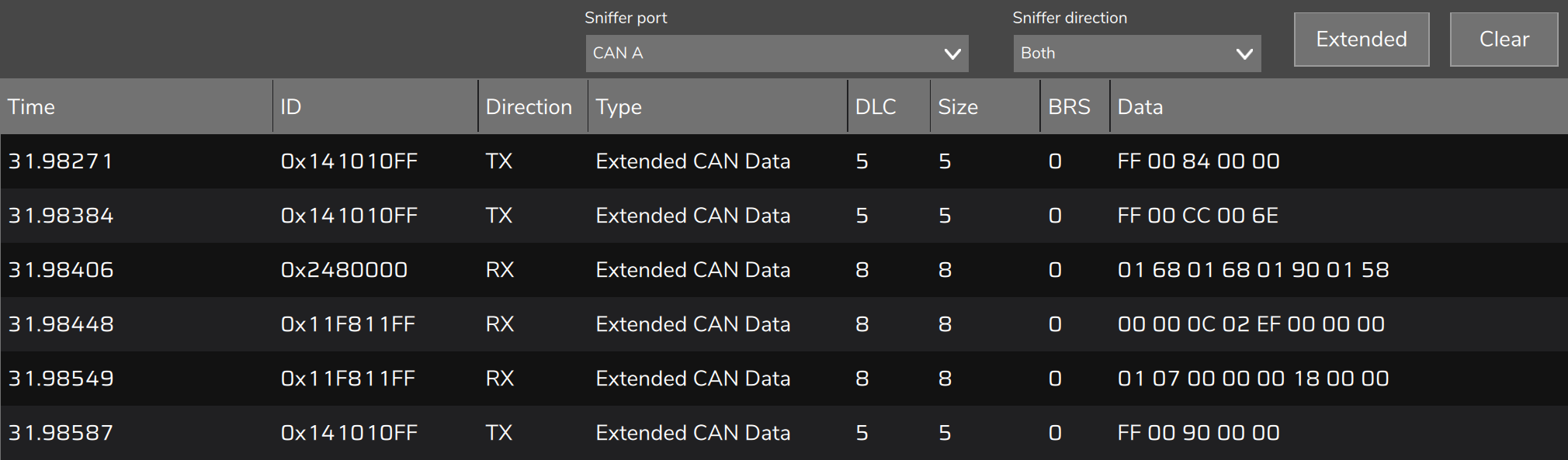
| Sniffer port | Disabled, CAN A, CAN B or CAN C (CAN C on the FT700 only). Choosing a port turns on capture on it. Changing ports clears the list. |
| Sniffer direction | TX (what the VCU sends), RX (what the VCU receives) or Both. |
| Extended / Filtered | A single button that toggles the display mode; the text shows the current mode. Here, Extended is the name of the full list, not of the ID type. |
| Clear | Empties the list. |
The two display modes:
- Extended: chronological list. Each frame received becomes a line, with the timestamp. Good for seeing the sequence of frames and what happens during an event.
- Filtered: one line per ID and direction, always with the latest content, and the Delta column with the time since the previous frame with the same ID. Good for discovering which IDs exist, the period of each one and which bytes change. A standard ID and an extended ID with the same number fall on the same line.
#Columns
| Column | Content |
|---|---|
| Time | Timestamp of the frame, in seconds since the sniffer was turned on for the port (Extended mode). |
| Delta | Time since the previous frame with the same ID and direction (Filtered mode). It shows the period at which the ID is transmitted. |
| ID | Identifier in hexadecimal. |
| Direction | TX (sent by the VCU) or RX (received). |
| Type | CAN Data, Extended CAN Data, CAN FD, Extended CAN FD or CAN Remote. |
| DLC | Data Length Code (0 to 15). |
| Size | Number of data bytes. |
| BRS | 1 if the FD frame used bit rate switching. |
| Data | The bytes in hexadecimal. |
#Limits
- The screen keeps the last 300 lines and is updated every 0.3 s. On a busy bus, Extended mode shows only the most recent stretch.
- To record a sequence, record a video of the screen or take screenshots: the sniffer does not record or export.
- There is no filter by ID and no decoding by DBC. Use Filtered mode to isolate IDs.
- With very heavy traffic some frames may not appear. The sniffer is for identifying IDs, formats and changes, not for counting 100% of the frames.
#Method for discovering a signal
When there is no DBC, the sniffer lets you find a signal by elimination:
- Choose the port and Filtered mode. Wait for the list to stabilize and note the IDs and the Delta of each one.
- Keep everything still and watch which bytes already change by themselves (counters, checksums). Note them so you do not confuse them.
- Cause one change at a time (move the lever to a position, turn the steering wheel, accelerate) and see which ID and which byte follow it.
- Repeat with at least three known values (for example P, R and D; or three temperatures) to find the scale and offset.
- Test the byte order hypothesis: a value that grows smoothly in Intel and jumps in Motorola (or the opposite) indicates the right order.
- Configure the signal in Customizable CAN and check the real-time value against the reference.