4. Building the graph
The graph is the drawing of the function: blocks, each with one operation, connected by links that carry the result of one block to the input of another. What each block does is in the block catalog. How the VCU runs the drawing is in the chapter How the VCU runs.
#Insert a block
Right-click any point of the graph, without dragging (dragging with the right button pans the graph). This opens the new block menu, and the chosen block is created at the menu position when the zoom is 1. With another zoom it may appear at another point: use Fit to find it. With blocks selected, the top of the menu has Delete selected items. On the right, a help column shows the text of the block under the mouse.
The menu has 4 categories and 37 blocks, in the order below.
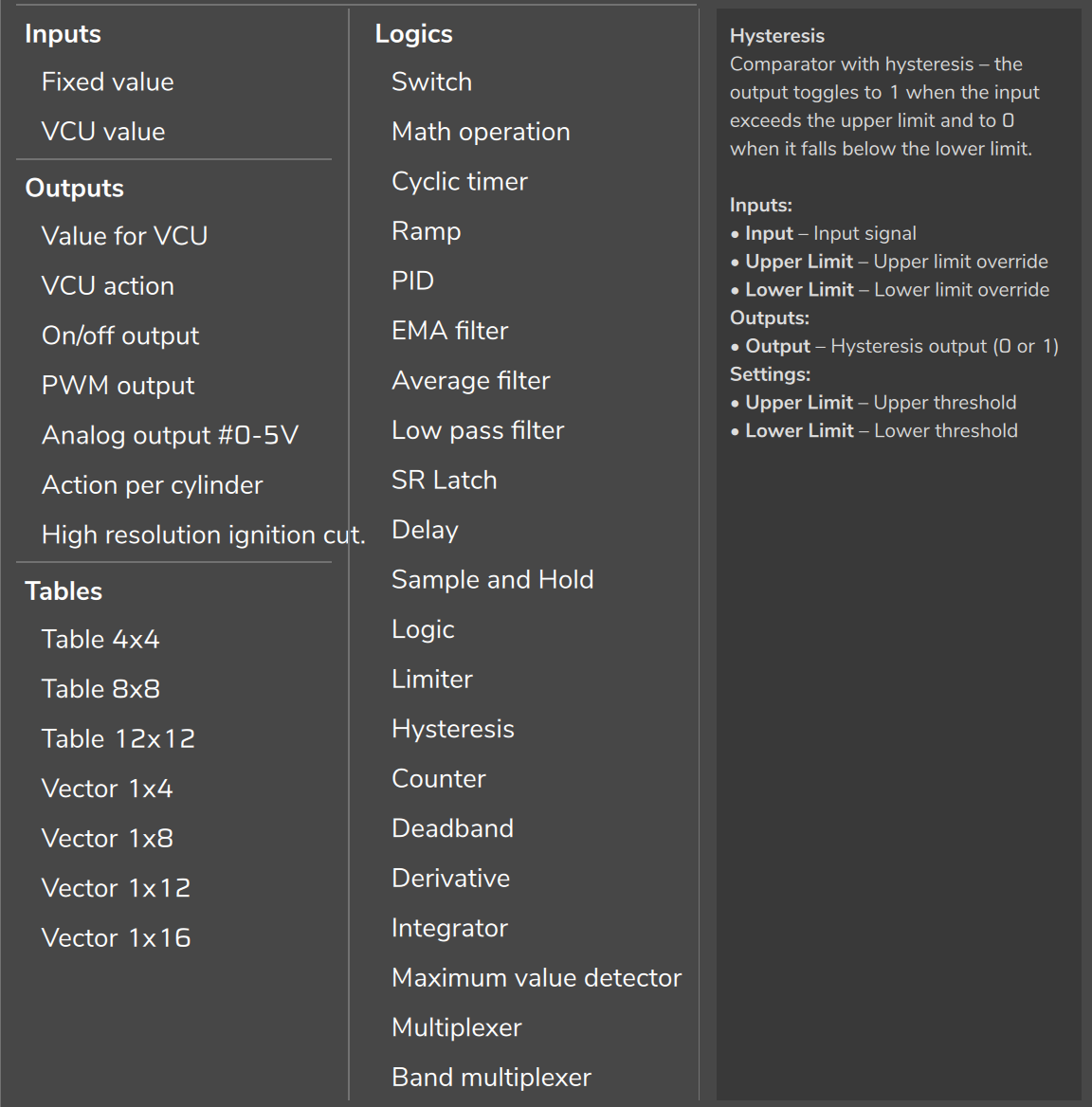
| Category | Qty | Blocks, in menu order |
|---|---|---|
| Inputs | 2 | Fixed value; VCU value |
| Outputs | 7 | Value for VCU; VCU action; On/off output; PWM output; Analog output #0-5V; Action per cylinder; High resolution ignition cut. |
| Tables | 7 | Table 4x4; Table 8x8; Table 12x12; Vector 1x4; Vector 1x8; Vector 1x12; Vector 1x16 |
| Logics (1 to 11) | 11 | Switch; Math operation; Cyclic timer; Ramp; PID; EMA filter; Average filter; Low pass filter; SR Latch; Delay; Sample and Hold |
| Logics (12 to 21) | 10 | Logic; Limiter; Hysteresis; Counter; Deadband; Derivative; Integrator; Maximum value detector; Multiplexer; Band multiplexer |
Each block has a sheet in the block catalog. The legacy Table block is not in the menu, but old maps that contain it still open.
#Connect blocks
The input socket is on the left side of the block and the output socket on the right. To connect, drag from an output socket to an input socket. When the connection is allowed, the destination socket "snaps" to the end of the link. If it is not allowed, the link does not snap and no message appears. The rules:
- One output feeds several inputs.
- Each input accepts a single link. To change the link of an occupied input, detach it first.
- A block does not connect to itself, and the link always goes from output to input.
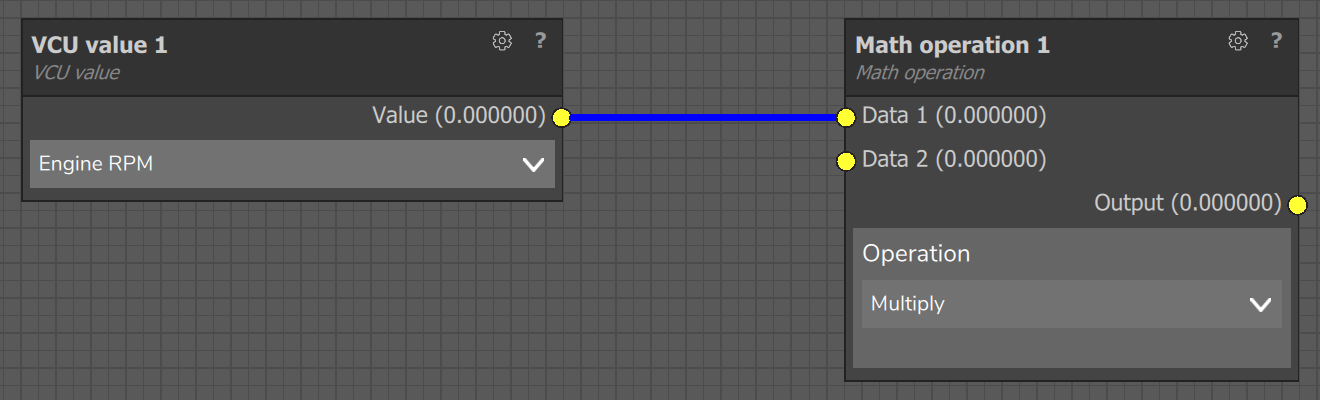
To detach a link, grab its end by the input socket and drop it on an empty area. Dragging from an input that already has a link disconnects that link and leaves you holding the end, still attached to the original output, to carry to another input. Near the window edge, the graph scrolls by itself during the drag. The socket is yellow when in use and gray when disabled. The link is blue; the links of the selected block turn amber.
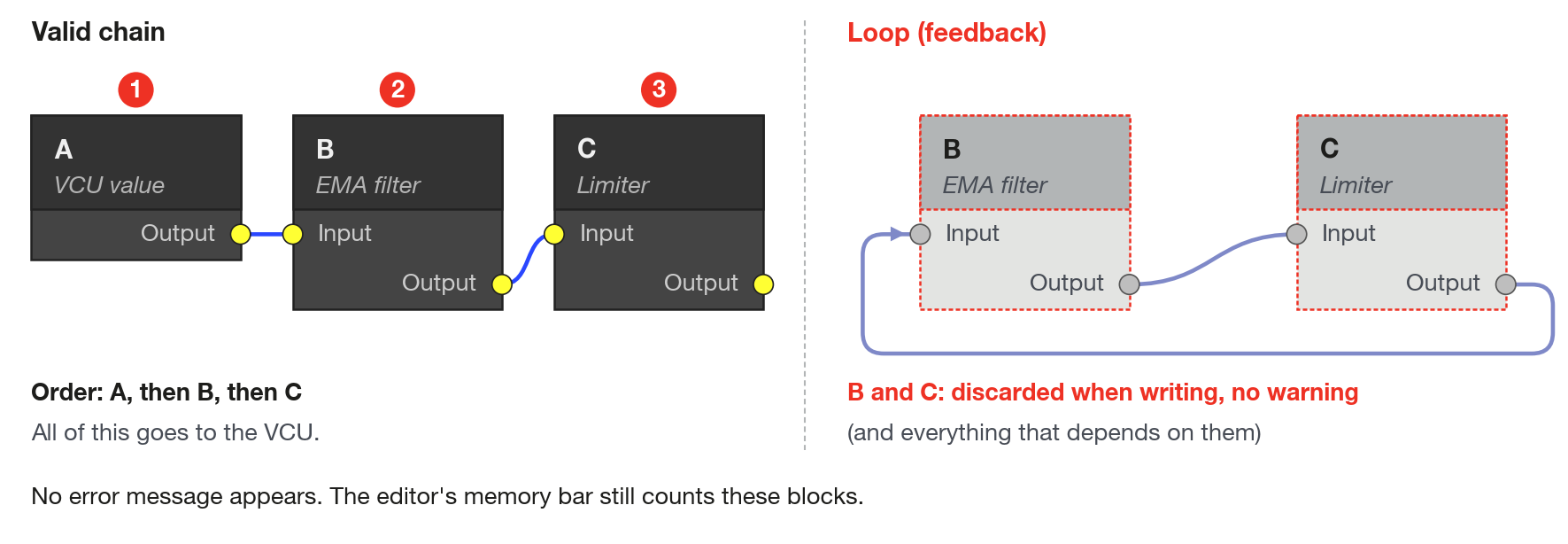
An input without a link is accepted without warning, as is an output without a destination. What each block does with the unconnected input is in the Inputs row of its sheet.
#Select, move and delete
- Select: click the block. Ctrl+click adds to or removes from the selection. Dragging in an empty area draws an amber rectangle and selects every block it touches, even partly. Clicking an empty area clears the selection.
- Move: drag a block. All selected blocks move together, inside the graph area (12000 x 6000 px at 100% interface scale).
- Delete a block: the Delete key, or Delete selected items in the right-click menu. The block's links go with it. The key only acts with a selection and outside the name field.
- View the drawing: Ctrl + mouse wheel zooms from 0.3 to 4; dragging with the right button pans the graph; Fit shows all blocks (active only if there is a block); Zoom box arms a one-time zoom rectangle (drag with the left button).
#Copy and paste
Copy with Copy (active with a selection) or Ctrl+C and paste with Paste (active when something has been copied) or Ctrl+V. The copy takes the selected blocks with all their parameters and only the links whose two ends are in the selection. The pasted content appears offset from the original. Pasting does not check the limits of 128 blocks and 256 links.
What was copied stays in the memory of FuelTech Vision, not on the Windows clipboard: it works across the 10 functions of the map and disappears when the application is closed. To take blocks to another map, export the function as .ftcf and import it in the other map.
#What does not exist in FuelTech Vision 3.0
- Undo and redo, select all, align or distribute blocks, snap to grid.
- Comments in the graph. Text boxes belong to the User screen and are not linked to blocks: to annotate the logic, use the block name.
- General help for custom functions. There is only the "?" button of each block and the text in the side column of the menu.
#Block name
The block header shows its own name (label) and, in smaller text below it, the type name. A new block is created with the type name and a number (Fixed value 1, Fixed value 2). To change it, open the block's gear and edit Block name. Empty text is ignored: clearing the field does not bring back the default name.
Name every block. With several blocks of the same type, "Fixed value 7" does not say what it is for. And the name goes inside the .ftcf, so anyone who receives the file reads your names. On the User screen, the customer sees the field name, defined in Block settings (chapter User screen).
#Block settings
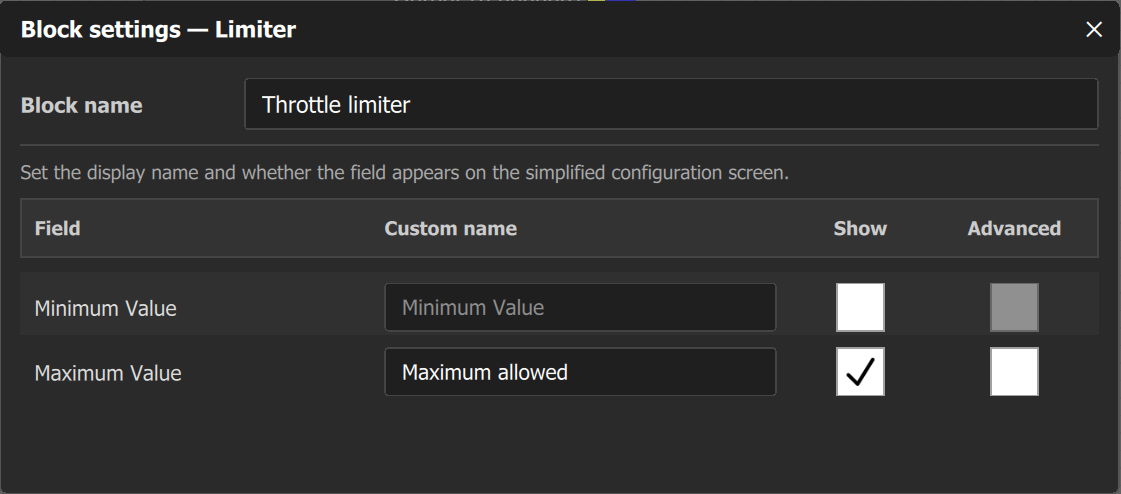
The gear is in the block header (tooltip Block settings), next to the "?" help button. It opens a modal window, titled Block settings followed by the type name, which can be dragged by the title bar and closes with Esc or with the close button. It configures:
- Block name.
- In the Table and Vector blocks: Show table in User screen, Advanced and the axis titles (X axis title and Y axis title in tables, Column titles in vectors). The titles are for display only and do not go to the VCU.
- In the other blocks: the list Field, Custom name, Show, Advanced. Each parameter gets a display name and you choose whether it appears on the User screen.
These are presentation settings. The parameter value is still edited inside the block. A field marked Advanced is hidden in the Screen editor and on the User screen while the function is in Mode: basic, and appears in Mode: advanced. The help sentence in the window calls the User screen the "simplified configuration screen": it is the same screen. Details in the chapter User screen.
#Memory meter
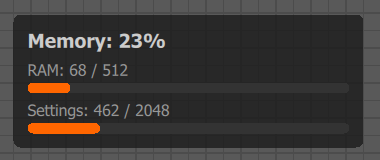
In the lower left corner of the Adjust tab, the meter shows Memory: X% and two bars: RAM: used / total, the working memory of the blocks while they run (total of 512 bytes), and Settings: used / total, the configuration memory with the type, the inputs and the parameters of each block (total of 2048 bytes). The X% is the larger of the two percentages. The totals belong to the map, not to the function: the meter adds up the blocks of all enabled functions, and a disabled function is left out, even the one that is open. What each block consumes is in the table in the chapter How the VCU runs.
The meter title is gray; it turns amber above 75% and red above 90%. Each bar is orange up to 75%, amber above 75% and red above 90%. The bar and the percentage stop at 100%, even if the actual use goes over: the "used / total" numbers keep showing the actual value.
#The "!" badge and the VCU errors
When the VCU reports an error in a function, FuelTech Vision shows at the top of the Adjust tab a red banner that starts with "The ECU reported an error in this workspace" (the screen uses ECU where this guide uses VCU), with the Clear button. The offending block gets a red border and a "!" badge. The error text appears in the tooltip when you hover over the badge. Clicking the badge clears that block's mark, and the Clear button in the banner erases all the marks.
The warnings that the VCU sends have a title starting with "Custom function:": "invalid block type" (firmware older than the map) and "execution memory full" (working memory above 512 bytes). Cause and fix for the two warnings are in the chapter Troubleshooting and common errors. The VCU value block has a warning of its own, an alert icon with the tooltip "This measure has no input configured in the map.", when the measurement comes from an analog input and no source feeds it.
#Live values on the blocks
Each socket shows the name and the value, with 6 decimal places. The values are calculated by the computer, not read from the VCU: every 100 ms FuelTech Vision walks through the blocks in execution order and recalculates each one. The VCU value reads the measurement that the VCU sends to the computer, and the other blocks recalculate from it. An output block has a green background when the command input is different from zero in this calculation. The editor does not read the function's internal values inside the VCU: use the live values to check the logic of the drawing and confirm the real behavior through the measurements that the VCU reports.
#Keyboard and mouse shortcuts
Keyboard shortcuts are turned off while the function name field is in focus.
| Action | How | Notes |
|---|---|---|
| Select a block | click | clicking an empty area clears the selection |
| Add to or remove from the selection | Ctrl + click | |
| Select several | drag in an empty area | amber rectangle; the block only needs to be touched |
| Move | drag a block | moves all selected blocks |
| New block | right button, without dragging | opens the new block menu |
| Pan the graph | right button, dragging | |
| Zoom | Ctrl + mouse wheel | from 0.3 to 4 |
| Connect | drag from the output to the input | |
| Detach a link | drag by the input, drop on an empty area | |
| Copy | Ctrl+C | needs a selection |
| Paste | Ctrl+V | appears offset from the original |
| Delete the selection | Delete | or Delete selected items |
| Confirm the function name | Enter | Esc cancels the edit |
| Not available | Ctrl+Z, Ctrl+Y, Ctrl+A, Ctrl+S, arrow keys |