11. Password protection
The editing password prevents the customer from opening the graph and the Screen editor inside FuelTech Vision. The customer keeps using the user screen. The password prevents accidental editing and casual browsing of the logic. It does not protect the logic against copying: read the What the password does not protect section.
#Setting, changing and removing the password
- Check Use User screen (see the User screen chapter).
- Go to the Screen editor tab and click Edition password (the button that sets the editing password).
- In the Set editing password dialog, type the password in New Password, repeat it in Confirm new password and click Save.
- Click Confirm on the top bar. Without Confirm, the password is not stored in the map.
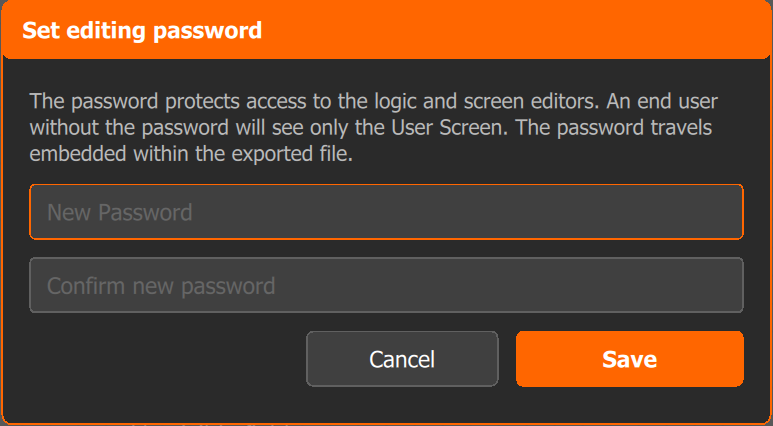
After Save, the function stays unlocked for the session. It locks again each time the screen reloads the map data: when you click Cancel, when you paste blocks and when you import. With the password active, the button shows Password: active.
- Change: click Password: active. The dialog becomes Change editing password. Fill in Current password, New password and Confirm new password.
- Remove: in the same dialog, enter the Current password and leave New password and Confirm new password empty (the field says "blank = remove"). Click Save and Confirm.
#Password rules
- The password accepts any non-empty text. There is no minimum or maximum length, and no character requirement. The dialog only checks that the confirmation is equal to the new password.
- To change or remove it, FuelTech Vision requires the current password ("Incorrect current password.").
- There is no recovery. FuelTech Vision has no way to reset or show the password. Without it, the user screen keeps working, but the graph and the Screen editor stay locked. The way out is to rebuild the function from a copy without a password.
- FuelTech Vision does not store the password, only a cryptographic digest of it (hash). The digest travels with the function: in the .ftcf file, in the map and in the logs.
- The password belongs to each function and stays with it after Erase. It is not the map's password protection, which is a different feature, with a different password.
#What is locked
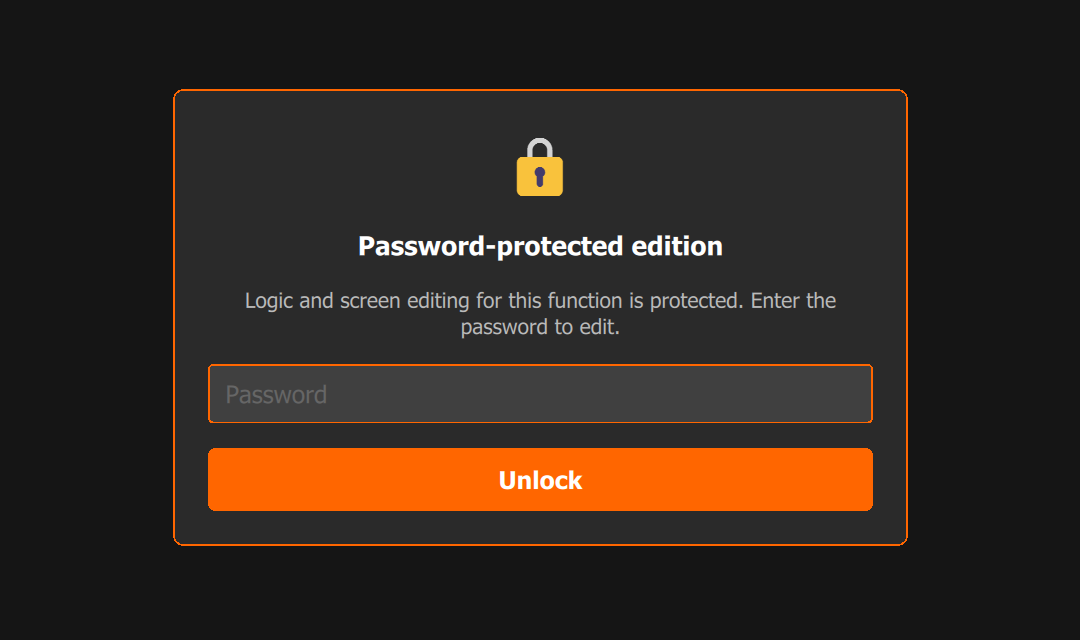
With a password and not unlocked, the Adjust and Screen editor tabs show a dark panel over them and the Password-protected edition notice. The Password field and the Unlock button release editing.
| Item | With password, not unlocked |
|---|---|
| Graph: view and edit blocks, links and name | Locked |
| Screen editor: fields, tables, texts, image, size, password and mode | Locked |
| Import, Export and Erase buttons | Locked |
| User screen, editing its values, Cancel and Confirm | Unlocked |
#Importing a protected function
Importing does not ask for a password. The password digest that comes in the file replaces what the function had, and the open function becomes locked. The import buttons sit under the panel when the destination function is locked: to import over a function with a password, unlock it first. Anyone who imports a protected function delivers it locked, without needing the password.
#What the password does not protect
The password is a lock on the FuelTech Vision editor, not on the VCU or the file. It prevents the customer from opening the logic editor and the screen editor inside FuelTech Vision. It does not hide the logic inside the .ftcf file, the map or the logs.
| Where | What it carries from the function |
|---|---|
| .ftcf file | Graph, user screen, background image and password digest, encrypted. |
| Customer's map | The same items, for each custom function in the map. |
| Log recorded with that map | A copy of the active map and, with it, the entire function. |
| VCU | Only the graph: blocks and links. No screen, no image and no password. |
The .ftcf file encryption prevents only casual reading. Do not promise the customer secrecy of the logic or protection against copying by anyone who has the file, the map or the log.