1. What the dashboard is and where it appears
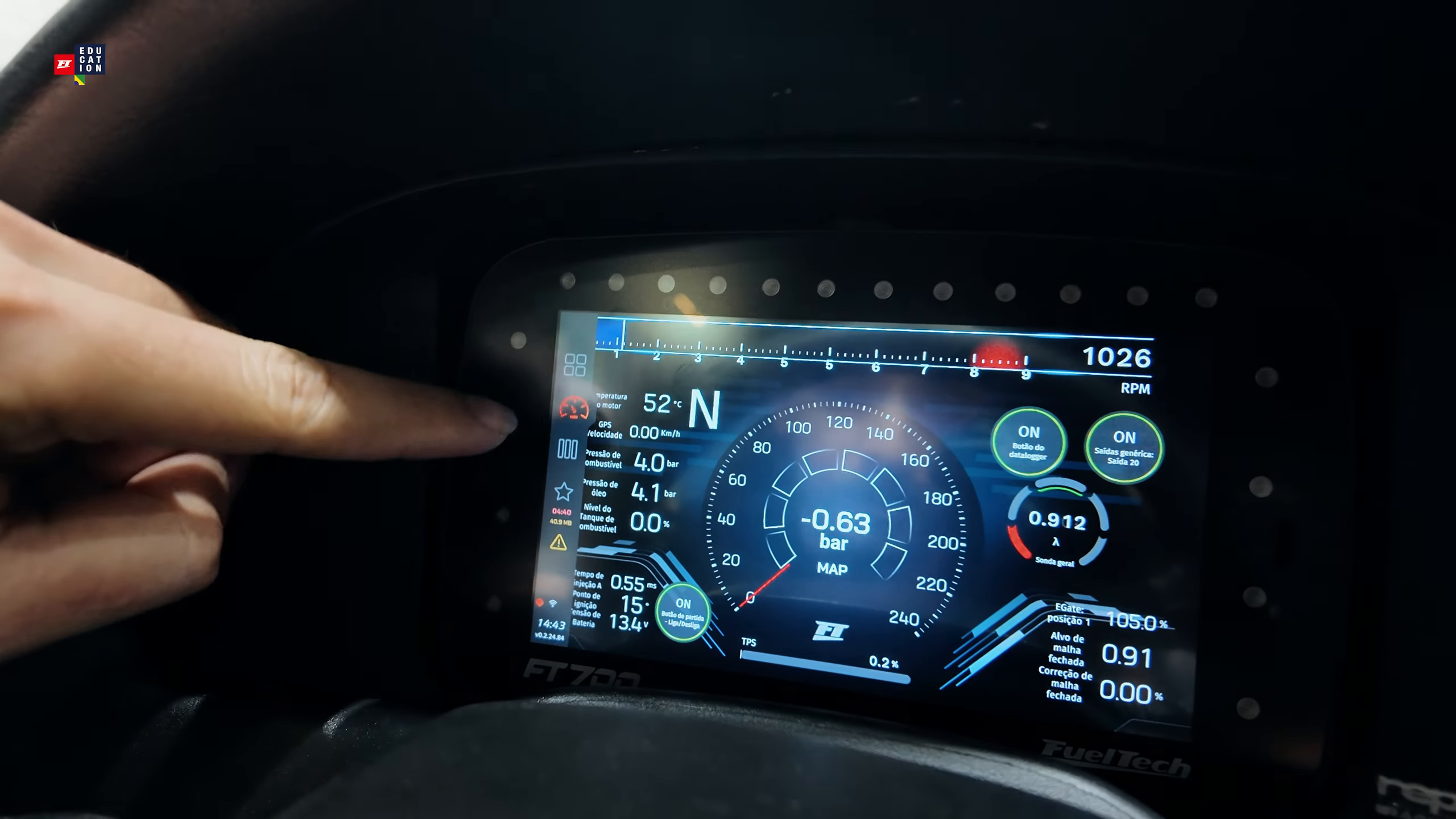
The dashboard is the set of screens that shows the car's data, with gauges, buttons and backgrounds. The data comes from the VCU, the FuelTech control unit installed in the car (FT700, FT700 Plus or FT470), which stores the map and sends the measurements to the dashboard. On the FT700 and the FT700 Plus, the dashboard appears on the unit's own display; on the PC, the phone and the tablet, in FuelTech Vision. Some screens show ECU instead of VCU (ECU model, ECU Button): it is the same device.
With this guide you build:
- The same dashboard on the PC, the phone, the tablet, the 7" FT700 and the 12.3" FT700 Plus, built for each target (sections 1.2 and 11.5).
- Native gauges in up to 4 styles (Modern, Classic, Neon and Cyberpunk), from 32 types, with about 1,180 measurements to choose from (chapters 6 and 9).
- Image or animated background, with 14 effects, and a night background (chapter 5).
- Pointers and warning lights drawn by you, and an RPM bar made with a GIF (chapters 7 and 10).
- On-screen buttons that command VCU functions (chapter 8).
- The dashboard of a classic car rebuilt step by step, following the method of the video "Do Calibra ao Corvette" ("From Calibra to Corvette") (chapter 10, gallery in section 10.9).
- An MP4 video with the gauges over the images from your camera, made from a log (section 12.3).
- Ready-made dashboards that you export and share as .ftds files (chapter 13).
This guide describes FuelTech Vision 3.00.54 with VCU firmware 00.03.00.54 (the unit's internal program). Screen names appear in bold, as in the English version of the app. To only import a ready-made dashboard, read chapters 2, 3 and 13 and section 8.1. Before writing to a car, go through the list in section 3.3.
Electric vehicle: the editor, the warning lights and writing to the VCU are the same as in chapters 4, 7 and 13. The gauge for power with regeneration is the Electric gauge (section 6.5), and the ECU Button has the EV charge command (section 8.1).
#1.1 The dashboard lives inside the map
The map (.ftmap file) is the complete VCU configuration: tables, functions and the dashboard. It is what you write to the unit. The dashboard takes up seven blocks of the map, one per target, each with up to 4 screens. A target is the device you draw the dashboard for (section 1.2). The VCU only stores the map: the one that draws the dashboard is FuelTech Vision, the program that runs on the PC, the phone, the tablet and inside the FT700 and the FT700 Plus.
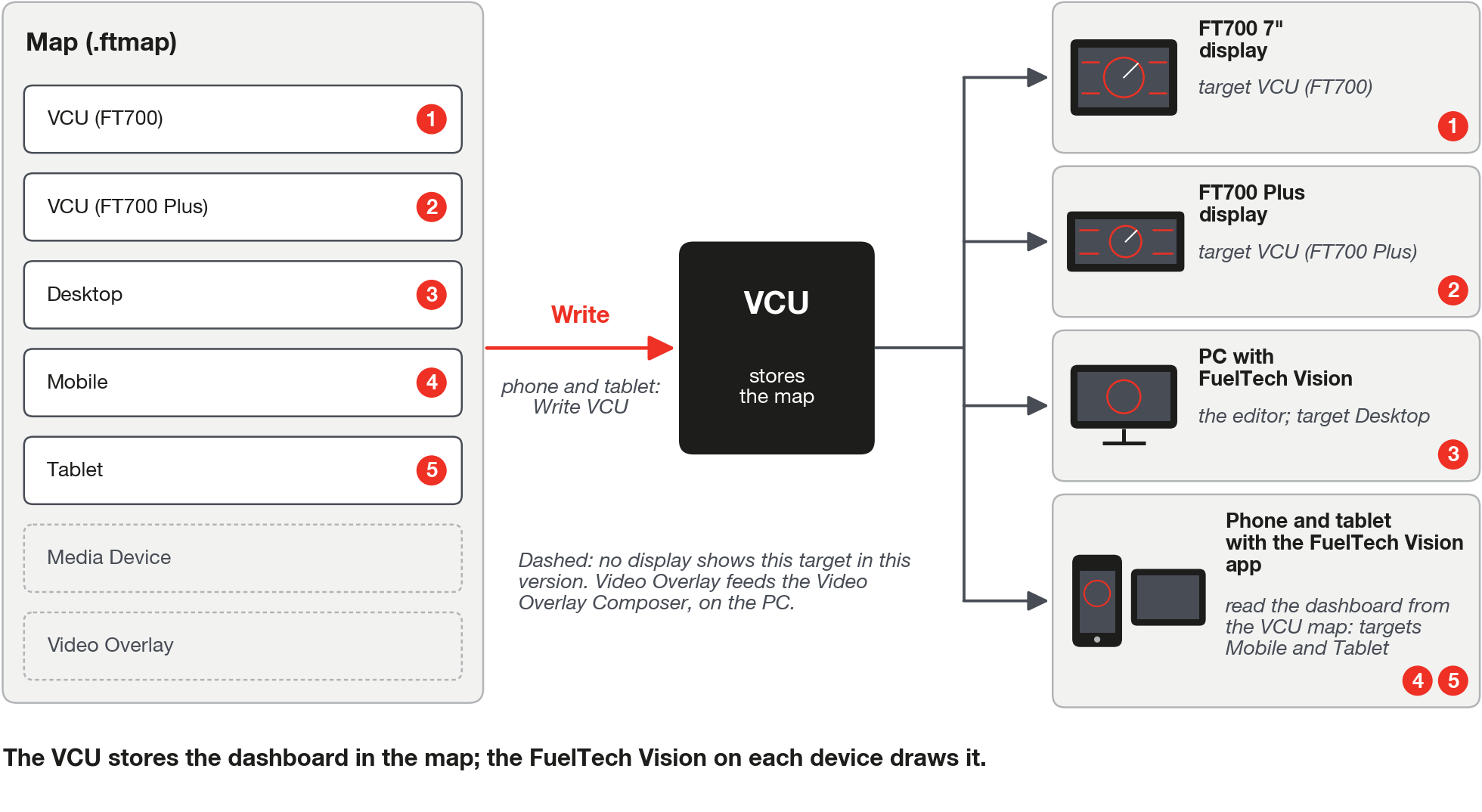
Consequences for your work:
- Writing the map to the FT700 or the FT700 Plus takes the dashboard along, with the images (background, Pointer PNG, GIF and Image), which are stored inside the map: more images, bigger map.
- A dashboard drawn for one target only appears on the devices that display that target (section 1.3).
- Saving in the editor and writing to the VCU are different actions (sections 3.1 and 4.8).
What the gauge shows before the first connection and after a dropped connection is in section 9.6.
#1.2 The targets and their sizes
The Device list has seven targets on the PC and six on the phone and the tablet, which do not have the Video Overlay (1 screen, PC only, in the Video Overlay Composer). The others have up to 4 screens. Six targets appear on some device in this version. The Media Device is reserved: no screen of FuelTech Vision 3.00.54 displays it, so do not build a dashboard on it.
| Target (name in the list) | Size (width x height) |
|---|---|
| VCU (FT700) | 1074 x 600 px, fixed |
| VCU (FT700 Plus) | 1920 x 720 px, fixed |
| Desktop | 1920 x 1080 px (default), adjustable |
| Mobile | 480 x 800 px (default), adjustable |
| Tablet | 1280 x 800 px (default), adjustable |
| Media Device | 1920 x 1080 px (default), adjustable; reserved in this version |
| Video Overlay | 1920 x 1080 px (default), adjustable |
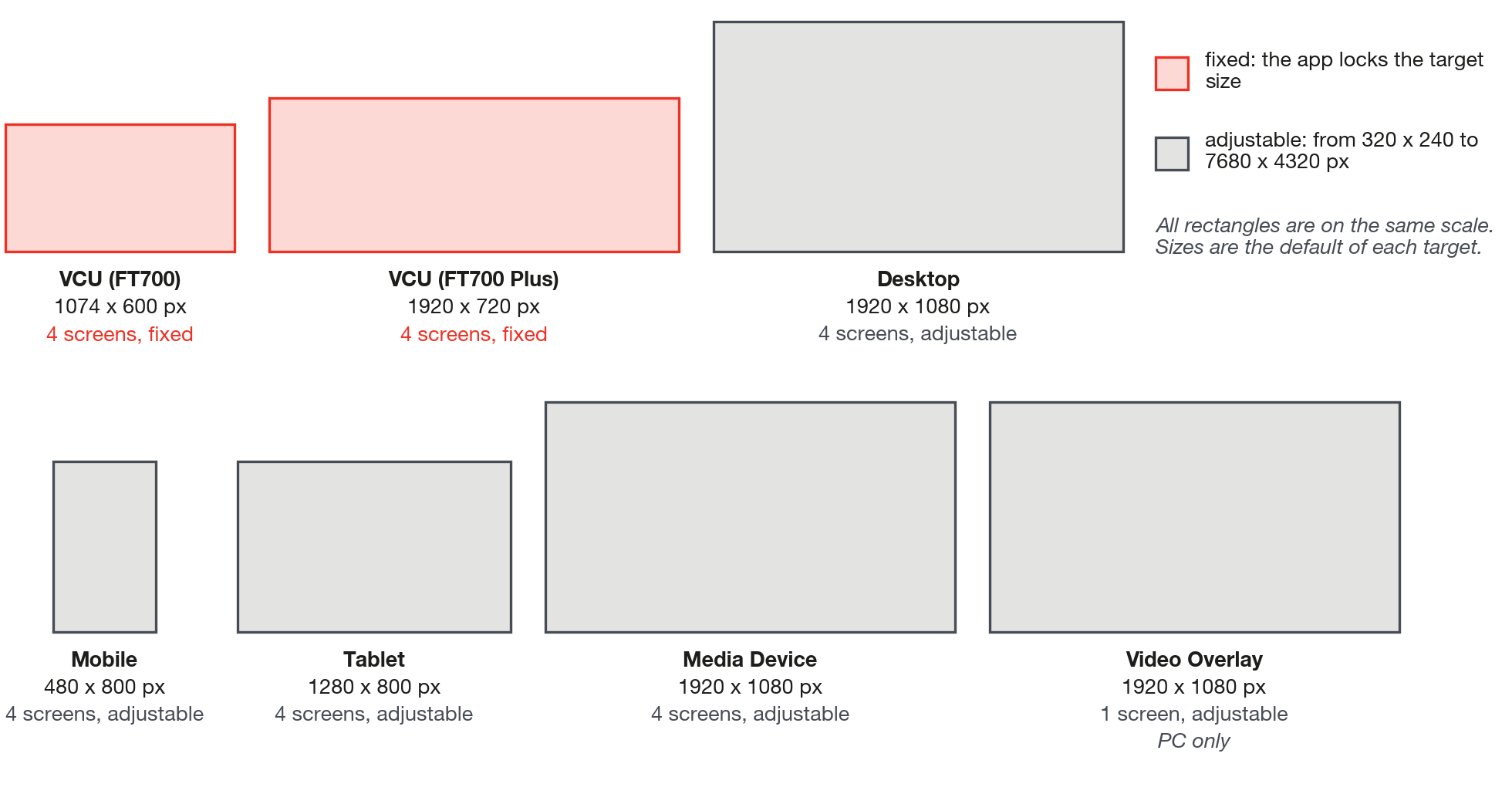
On fixed-size targets, the app goes back to the size of the target even if the map brings another value. On adjustable-size targets, Width (320 to 7680 px) and Height (240 to 4320 px) are in the Device tab; while the value is 0, the default in the table applies.
#1.3 Which target each device shows
| Device | Target it displays | How the dashboard opens |
|---|---|---|
| FT700 7" | VCU (FT700) | At power-on, if Startup screen selection is set to Open the dashboard after startup (section 3.2), or from the unit's menu |
| FT700 Plus | VCU (FT700 Plus) | Same as the FT700 7" |
| PC | Whichever you choose | Dashboard group of the menu (Dashboard FT700 (7"), Dashboard FT700 (12"), Dashboard Desktop, Dashboard Mobile, Dashboard Tablet). It only displays, it does not edit |
| Phone | Mobile | Dash button on the bar (icon only), enabled only with a map open. |
| Tablet | Tablet | Button with the tooltip Dashboard, enabled with a map open or with a local dashboard chosen |
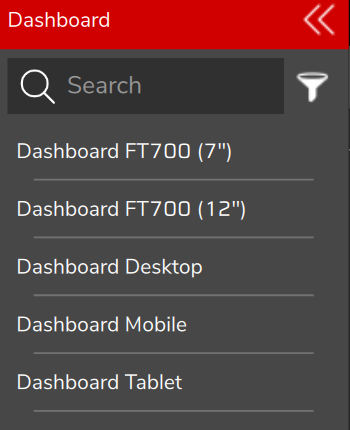
The VCU (FT700) target only appears on the FT700 itself and on the PC (in the menu and in the Video Overlay Composer): the phone and the tablet show Mobile and Tablet even when connected to an FT700. An Android multimedia head unit that identifies itself as an automotive device opens as a tablet and shows the Tablet target. On the PC, the phone and the tablet you can also open a local dashboard (.ftds, the dashboard file outside the map, section 13.6).
#FT470, which has no display
The FT470 has no display: the dashboard appears on the PC, the phone and the tablet, from the map read from the FT470. Edit Tablet, Mobile or Desktop, according to the device where the dashboard will appear (section 11.6): the PC editor opens on Media Device, which no device displays. The images go along with the map if Send images of the dashboard along with the map (in Preferences, Usability tab, FT470 card; on the phone and the tablet, in Settings) is on, as it comes by default.
#1.4 Factory default dashboard
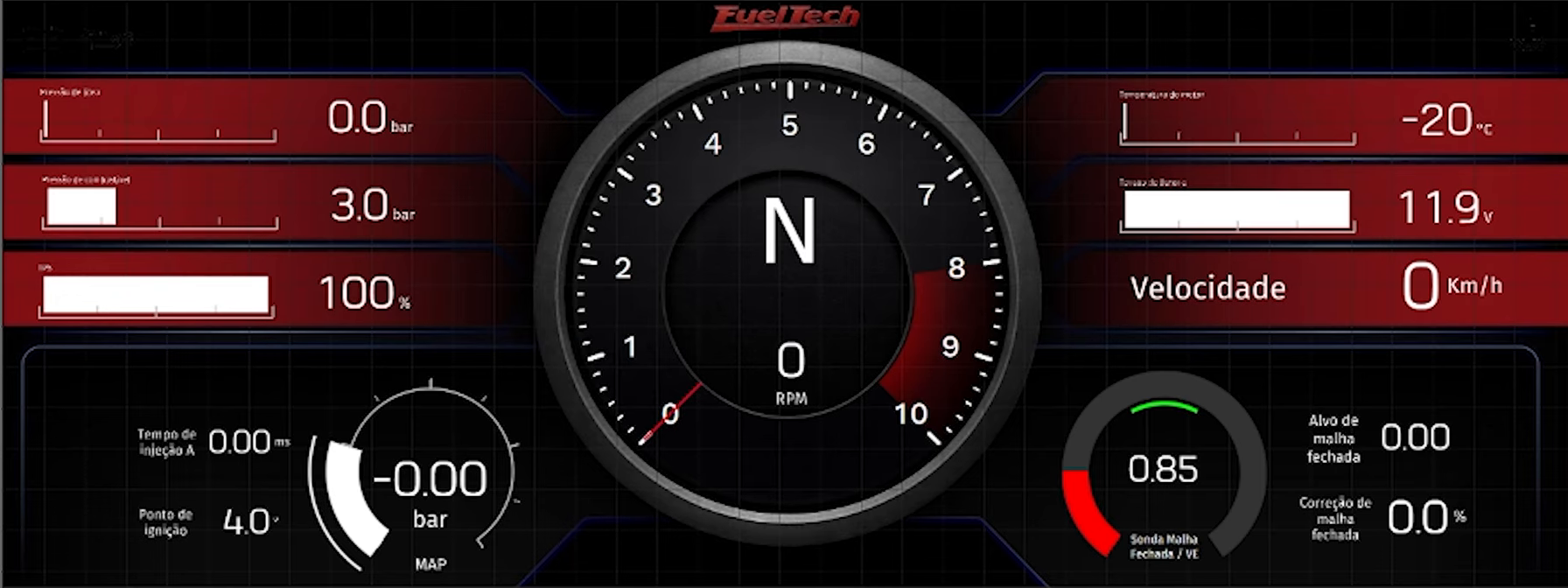
Every new map receives a default dashboard of 1 screen, with 16 to 18 gauges, on the targets VCU (FT700 Plus), VCU (FT700), Desktop, Mobile and Tablet. Media Device and Video Overlay start empty. A map imported from the PowerFT, another line of FuelTech ECUs, also receives the default FuelTech Vision dashboard, not a conversion of the old dashboard.
The default dashboard is only applied when Screen 1 of the target has no gauges, and not when opening a map from a file or reading the map from the VCU: the app never overwrites a dashboard you built. There is no button to restore the factory dashboard: export the target's screens before editing (chapter 13).
#1.5 Words this guide uses
Gauge is each element of the dashboard (the editor button uses the same word: Add gauge). Layer is the front-to-back order in the Layers list. Background is the color or image behind the gauges, in Day background and Night background (on the PC, Day mode background and Night mode background).