2. Before you start
#2.1 Versions and the open map
#Versions
Sending a map has two version locks (they do not apply to the FT470), with the warning Incompatible VCU version: VCU firmware below 00.02.24.56 (PC, phone and tablet) and, on the PC only, VCU firmware in a different version from the app. In the second case, the message shows both versions and asks you to update the VCU and the app to the same version. The PC, phone and tablet do not open a map written in a newer version than the app: update the app.
#The open map
| Device | Where the map comes from | What happens when you write |
|---|---|---|
| PC | .ftmap file from disk, or map read from the VCU | Write sends it to the VCU (with a map from a file, it also overwrites the file) |
| FT700 and FT700 Plus, editor on the unit | Map open on the unit itself | Save writes the map to the unit immediately |
| Phone and tablet | Active map of the VCU, read when connecting, or map opened from a local file | Write VCU sends the map; Save only marks the map as changed. With no map, Save writes the open local dashboard (.ftds) (new dashboard: Save as local dashboard), and nothing goes to the VCU |
On the phone and the tablet, the dashboard shown is the one from the map that was already open when connecting, not the one from the VCU. With no map open, two boxes in Settings decide whether the VCU's active map is read (section 11.3).
#Backup copy
If the unit's map was adjusted after your copy was made, writing the old copy undoes the adjustment (section 10.7).
- In Overwrite mode, the default of Write, if the map name on screen is different from the name of the active map on the VCU, the app writes the new map, activates it and, after the activation is confirmed, deletes the old file from the VCU. The name comes from the map title, not from the file name on disk.
- To keep the new dashboard without changing the active map, open the arrow next to Write, choose Save map and not activate and activate it later with Make active on the VCU files screen. This option does not ask for confirmation.
#Update FuelTech Vision or open a map from an earlier version
Keep a copy of the .ftmap before opening a map from an earlier version, and check each target afterwards: if Screen 1 of the target already has gauges in the current format, they stay as they are, and the old-format dashboard is discarded without conversion. If it does not, the app converts the dashboard from the old format and creates the current dashboard just once, only on VCU (FT700 Plus), VCU (FT700), Mobile and Tablet, with the position rescaled (on the 7", X x 1.0488).
When updating FuelTech Vision, also check three points: (1) the PowerFT map receives the default dashboard, not a conversion (section 1.4); (2) a measurement that no longer exists, such as the old Odometer, leaves the gauge with no data (section 9.1); (3) a .ftds dashboard built in another version can end up with gauges with no data for the same reason (section 13.7).
#2.2 Choose the right target before editing
The dashboard of one target does not appear on the others: check the target before touching any gauge. On the PC, choose it in Device:, in the left corner of the top bar (the title above the work area shows the active target). On the phone and the tablet, the floating button opens Select target, with the list and the OK button.
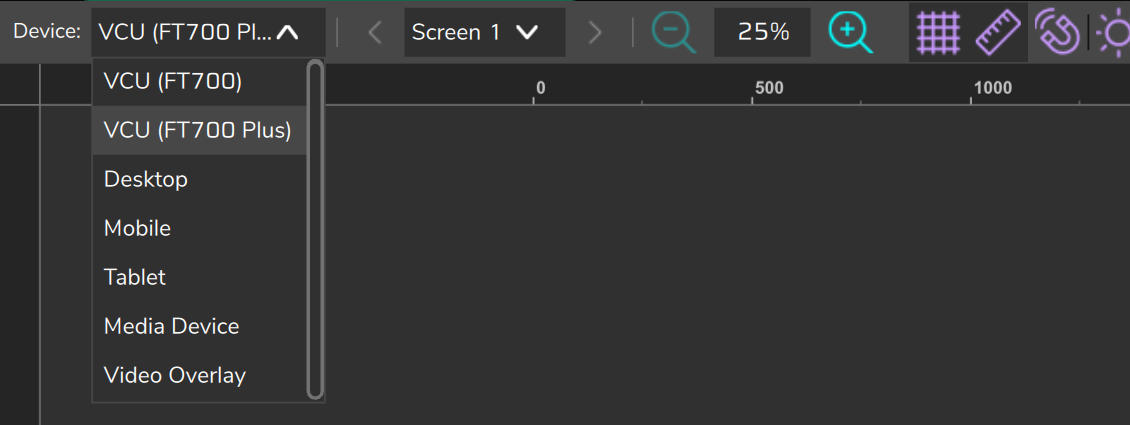
The editor opens on VCU (FT700) on the 7" FT700, on VCU (FT700 Plus) on the FT700 Plus, on Mobile on the phone and on Tablet on the tablet. On the PC, it opens on the target of the model that the connected unit reports (with an FT470, Media Device). With no unit, it depends on the model set in Map options: FT470 opens Media Device, FT700 with FT700 Plus (12.3") opens VCU (FT700 Plus), and in all other cases, VCU (FT700).
Map options is in the My VCU group of the PC and phone menu, and in the VCU group of the FT700, FT700 Plus and tablet menu.
Switching target or screen does not ask for confirmation: edits only go to the map on Save changes, which saves those of all targets. Cancel changes discards those of all targets, not only the target on screen. To take a dashboard to another target, follow section 11.5: the app does not rescale the gauges by itself.
#2.3 The 7" pixel
The 7" display of the FT700 has 1024 x 600 pixels, and the dashboard of the VCU (FT700) target is drawn at 1074 x 600, because the pixel of this display is not square. The app compresses only the horizontal axis by a factor of 0.9534 (1024 divided by 1074), and circles come out round. The FT700 Plus (12.3" display, 1920 x 720) does not compress anything.
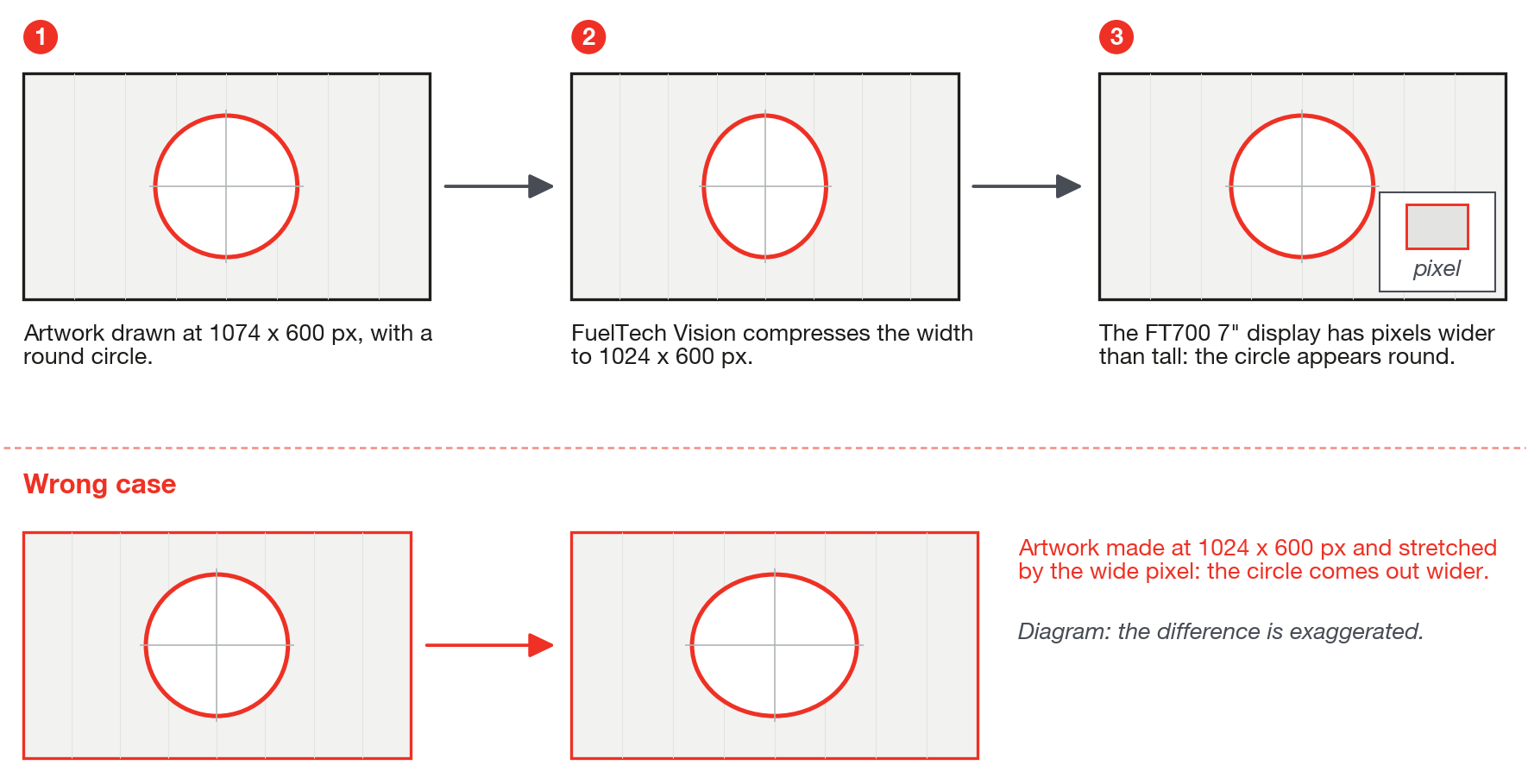
If you draw the artwork for the 7":
- Draw the background and the images at 1074 x 600. X, Y, Width and Height of the gauges also apply in this space.
- Provide the 7" background at 1074 x 600: a background set to Fill (Position field) is stretched to the size of the target without keeping the aspect ratio.
The number 1074 is the approximation the app adopts: after writing, check on the unit a circle drawn at 1074 x 600.
#2.4 Dashboard screens
In the Device tab, Number of screens (1 to 4) and Initial screen (1 to 4) define how many screens the target has and which one opens first; both fields disappear when the target can only have 1 screen, as in Video Overlay.
- On the PC, switch screens with the Previous screen and Next screen arrows or with the Screen N list, in the top bar. On the other devices, use the navigation strip at the top, with the text Screen 2/4 and arrows, which only appears if the target has more than 1 screen.
- There is no copying, duplicating, moving or reordering of screens. To take a whole screen somewhere else, export and import (chapter 13).
- Reducing Number of screens removes the last screens, without confirmation; export the screens you want to keep before reducing.
The driver switches screens by dragging a finger or the mouse over the dashboard, with the Navigation Button gauge, which goes straight to a chosen screen (section 8.3), or, on the FT700 and the FT700 Plus only, with a physical button that advances one screen per press, in a cycle (section 8.5). The physical button uses the Input for screen swipe in the Device tab and only acts if the dashboard has more than 1 screen; it advances on the rising edge of the signal, from 0 to 1, and holding the button does not repeat. The Activation mode field (Activated at 0V or Activated at 12V) is saved in the map, but does not change the polarity: the Input sensor of the chosen input applies.
#2.5 Where to edit
The dashboard has an editor on the PC, the FT700, the FT700 Plus, the phone and the tablet. The PC is the only complete one; the others edit the same map, with fewer features (Saving and writing: table in section 2.1).
| Feature | PC | FT700 7" and Plus | Phone and tablet |
|---|---|---|---|
| Copy, cut and paste | Ctrl+C, Ctrl+X, Ctrl+V | Keyboard only, on the Plus. The 7" does not have it | No: use Duplicate |
| Import and export .ftds | Yes, screen by screen | No | Save as local dashboard and Add (chapter 13) |
Since the FT700 and the FT700 Plus do not load images, the background, the Pointer PNG, the GIF and the Image come in through the PC, the phone or the tablet. On the phone and the tablet, if the image does not load, the app shows no error message: check the result in the editor.