5. Background and night mode
Each screen of the dashboard has two backgrounds, the day one and the night one. The background sits behind all gauges and outside the Layers list. Only the background changes with night mode: the gauges do not change color.
#5.1 Background types
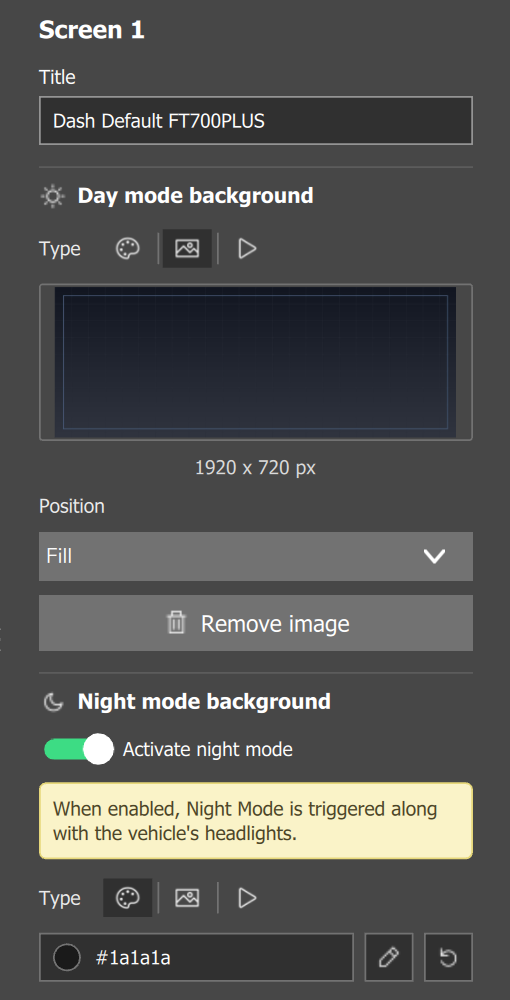
The backgrounds are in the Screen tab (PC) and in the Screen 1 to Screen N tabs of the Dashboard Settings window (touch). The labels change according to the device:
| Item | PC | FT700, FT700 Plus and phone | Tablet |
|---|---|---|---|
| Day background | Day mode background | Day background | Day background, with a sun in front |
| Night background | Night mode background | Night background | Night background, with a moon in front |
| Turning night on | Activate night mode switch | Enable box | Enable box |
The Video Overlay target has a single background, solid color, with the label Background and no night mode (chapter 12).
The background type is Solid color, Image (section 5.2) or Animation (Animate, on touch), as icons on the PC and in the Background type list on touch.
#Solid color
On the PC, the Edit color and Restore default color icons open the picker and go back to the default color, #1a1a1a, which is also the base behind the image and the animation.
#Animated
The Shader field (the graphic effect of the animated background, recalculated every frame) has 14 effects, with English names in all three languages. On a new screen, Color 1 is #800000 and Color 2 is #474C55, for any effect. Speed ranges from 0.1 to 3.0 times, in steps of 0.1, with default 1.0.
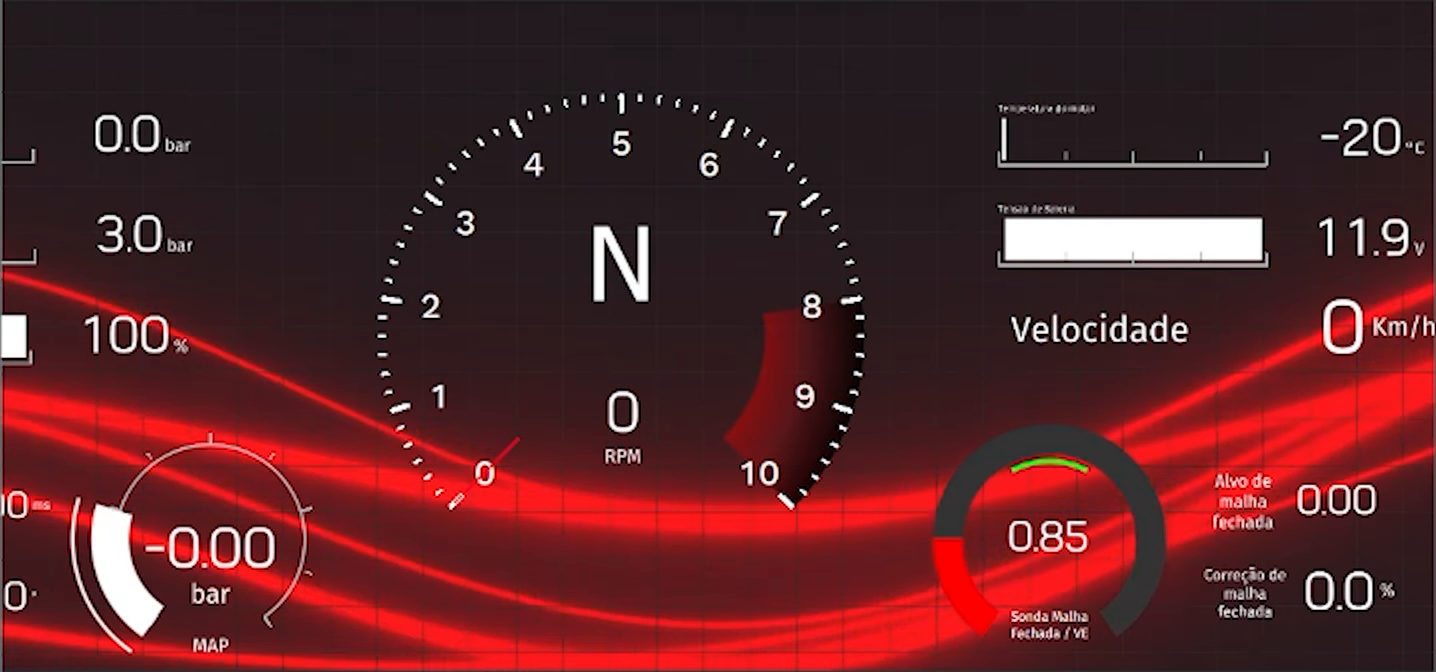
The animated background is redrawn every frame and, on the FT700 and the FT700 Plus, at half resolution: before delivering the car, go through all the screens on the unit itself and check that the gauge refresh is still smooth.
#5.2 Background image
| Item | Rule |
|---|---|
| Formats | The picker lists png, jpg, jpeg and bmp. |
| Where to load | Add image button, on the PC, the tablet and the phone. On the FT700 and the FT700 Plus, it and Remove are hidden. |
| Size | Reference: the resolution of the target (1074 x 600 px on VCU (FT700), 1920 x 720 px on VCU (FT700 Plus); on adjustable targets, Width and Height). A larger image is reduced keeping the aspect ratio; the app never enlarges. |
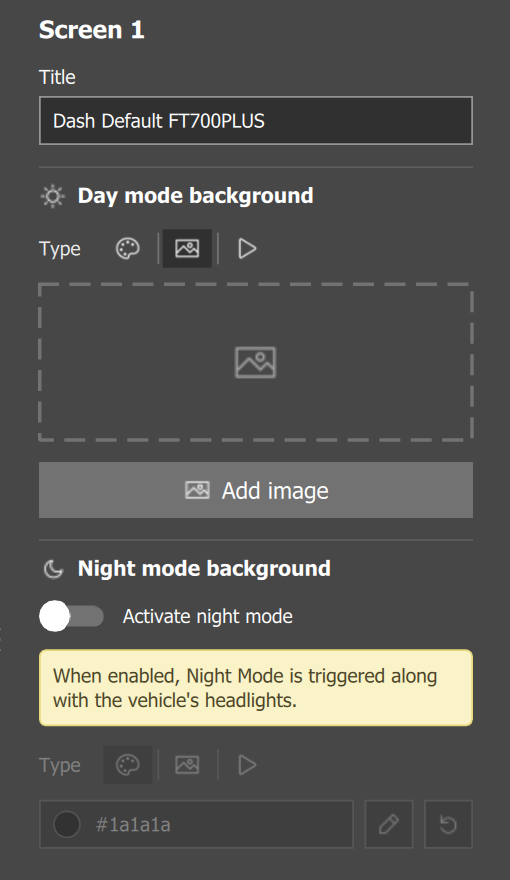
Each background (day and night) is saved in the map as base64 text (the image written in letters and numbers), about 4/3 of the size of the JPEG, with no warning and no size limit: a larger image makes a larger map, and the two backgrounds add up. In the .ftds file, the background is a text that starts with this prefix, which is mandatory:
data:image/jpeg;base64,<base64 text>On the phone and the tablet, loading the background fails silently when the file is not local or does not open: check the preview and, if it did not change, load the image on the PC.
#Positioning and scale
The Position field has three options:
| Option | What it does |
|---|---|
| Fill | Stretches the image over the whole screen, without keeping the aspect ratio. |
| Centralize | Puts the image in the center, at the image size times Scale (%). |
| Free | Puts the image at the position of the Offset X and Y fields (canvas px), at the image size times Scale (%). |
Scale (%) ranges from 1 to 1000 and only appears in Centralize and Free. Offset only appears in Free. Remove image (Remove, on touch) deletes the image and sets the positioning back to Fill.
Fill does not keep the aspect ratio or crop: it stretches and distorts the image. An image with an aspect ratio different from that of the target ends up stretched: provide the background in the exact aspect ratio of the target (section 2.3).
Exporting and importing a screen takes both backgrounds (chapter 13); copying and pasting gauges does not take the background.
#5.3 Night background: what triggers the switch
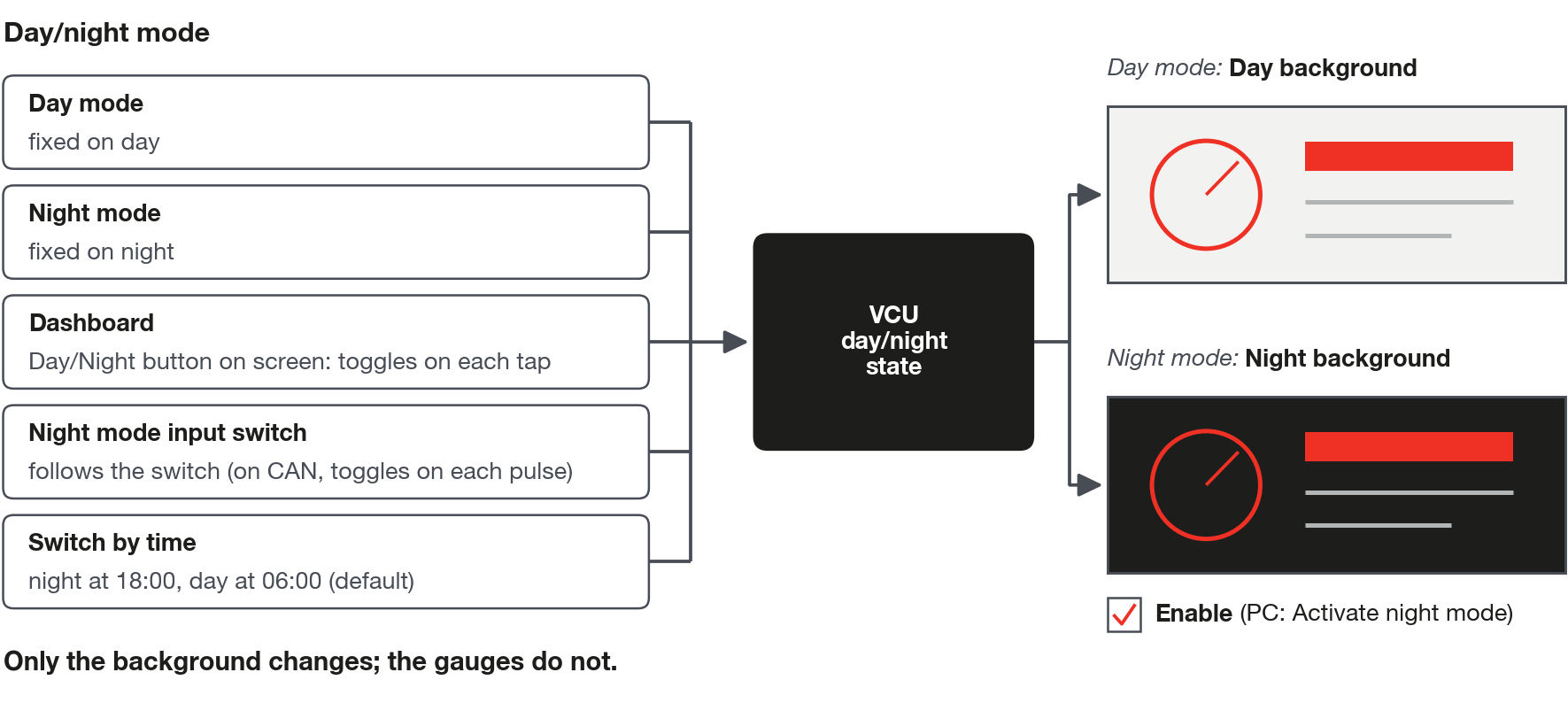
The dashboard follows the VCU's day/night state, and the night background only appears on screens where Activate night mode (or Enable, on touch) is on; with the switch off, the day background always applies. The night background of a new screen is #1a1a1a, like the day one, not black. On the PC, the Simulate day/night mode icon shows the night background in the editor, without a VCU.
#Who sets the day/night state
The state is set on the Day/night mode screen, the first item of the same menu as the editor (Interface, or Interface Settings on the PC and the phone). The four modes:
| Mode | What happens |
|---|---|
| Day mode and Night mode | The VCU stays always in day or always in night. |
| Dashboard | The dashboard's day/night button toggles the state on each tap. To have this button, add an ECU Button and choose the Day/Night button command (chapter 8). |
| Night mode input switch | A VCU input decides. Physical source or switch panel: night follows the signal level. CAN source: each pulse toggles. With no valid signal, day applies. |
The Switch by time option is independent of the chosen mode. With it on, the one that switches is FuelTech Vision, by the clock of the device it runs on (the unit, on the FT700 and the FT700 Plus), and the clock rules: the interface's day/night button stops applying. Set Night mode start (default 18:00) and Day mode start (default 06:00), in whole hours from 0 to 23. If they are equal, day always applies.
The display brightness is a separate setting, in LCD settings: Day mode and Night mode, from 4% to 100%, default 100%.
#5.4 What does not exist: day and night per gauge
Day and night exist only at the screen level: no gauge has a night mode field, and the color of the pointer, the digits and the lights does not change. If the artwork needs to look different at night, draw the difference in the Night background, the only part that switches.
Do not build night versions of the gauges with Conditional visibility on the measurement of the day/night button: it reads the button's input, not the VCU's day/night state. Check on the bench.