11. Each target in detail
Sizes and choice of target: sections 1.2 and 2.2. The unit, phone, tablet and PC have 1 to 4 screens, switched by dragging or by the Navigation Button gauge. The physical screen change button only works on the FT700 7" and the Plus. The GIF runs at 24 frames per second on them and at 60 on the PC, the tablet and the phone (section 7.2).
The entrance animation of a gauge plays when loading finishes. On the FT700 and the phone, switching screens does not repeat it; on the PC and the tablet, jumping to a screen that was not loaded yet repeats it.
#11.1 FT700 7"
The FT700 7" shows the VCU (FT700) target. The drawing is 1074 x 600 px, fixed (the Device tab shows 1074 x 600 px (fixed)), and the display is 1024 x 600 px: the app compresses only the width, by the factor 0.9534. Artwork rules: section 2.3. On the PC, the Dashboard FT700 (7") item in the Dashboard group shows the same target, without editing.
#Where to edit
- On the PC, VCU (FT700) in the Device: list. On the phone or the tablet, Select target (the editor opens on Mobile or Tablet).
- On the unit, by touch: Interface > Dashboard setup. It edits only the VCU (FT700) and does not have the buttons that load a file (background, Pointer PNG, Image, GIF, SVG): background and images come from the map built on the PC, the phone or the tablet.
- On the unit, Save stores the map immediately. The button that cancels the changes discards the edits of all targets without asking for confirmation.
#Before writing
- Check that the target is VCU (FT700) and that the background and images were drawn at 1074 x 600 px. Keep every gauge inside the canvas: the dashboard is not reduced to fit.
- To switch screens with a physical button, configure Input for screen swipe and the polarity in the Input sensor of the chosen input (section 8.5). The Activation mode field does not change the polarity.
- Save in the editor and write with Write (section 13.1). The dashboard goes inside the map, with the images. If the unit was not on the dashboard when it received the map, open the dashboard from the menu; if it was, it reloads by itself.
- The dashboard opens at power-on if Startup screen selection is set to Open the dashboard after startup, or from the menu (section 3.2).
#After writing
- Go through all the screens on the unit, test each way of switching screens with the touch the driver will use and force night mode from the unit's selector to check the night background of each screen (section 5.3).
- Check the tachometer, lights and numbers against the VCU data (section 10.7).
#Dashboard size
The app does not limit the gauges per screen; it only reduces large images: the background to the size of the target, the Image to 1920 px and the Pointer PNG to 512 px on the longest side. The maximum size can only be measured on the device: after writing, check the opening time and all the screens (section 14.6).
#11.2 FT700 Plus
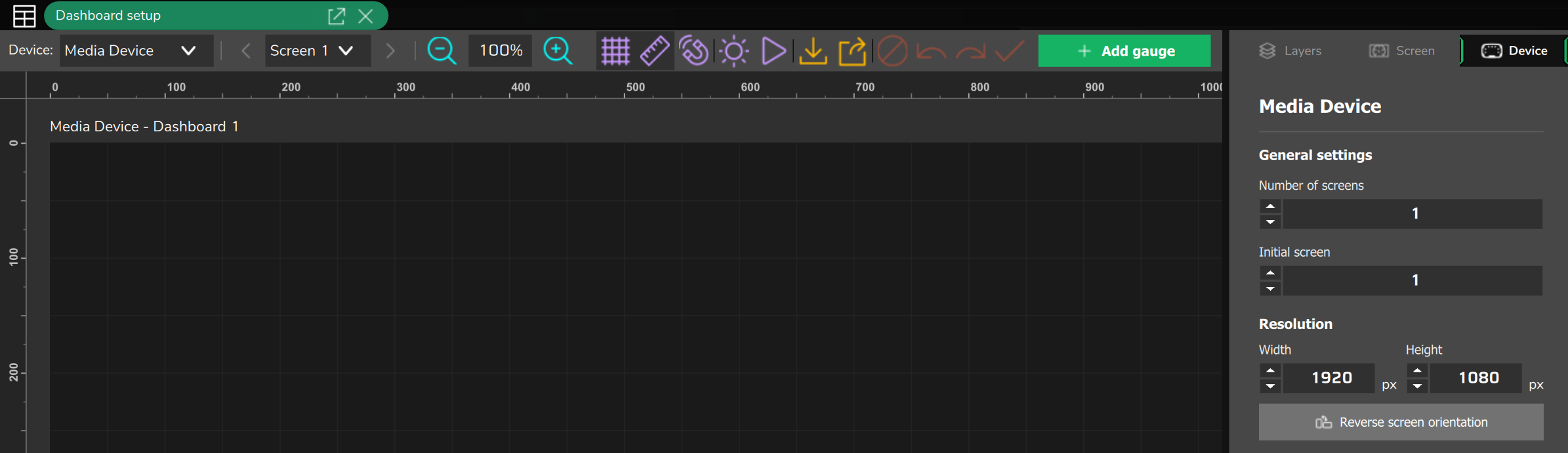
The FT700 Plus shows the VCU (FT700 Plus) target, with a drawing of 1920 x 720 px, fixed (1920 x 720 px (fixed) in the Device tab) and with no compression. Editing, writing and opening the dashboard work as in section 11.1. On the PC, the Dashboard FT700 (12") item shows the same target, without editing.
- X, Y, Width and Height are in display pixels. Provide the background at 1920 x 720 px.
- The aspect ratio is 2.67 to 1, against 1.79 to 1 for the 7": the 7" drawing does not fill the Plus without recomposing (section 11.5).
- With a keyboard connected, the Plus editor responds to Ctrl+C, Ctrl+X, Ctrl+V, Delete, Ctrl+Z, Ctrl+Y and Ctrl+Shift+Z. The 7" editor has no shortcuts.
In a Plus map opened on the PC with no unit connected, the editor opens on VCU (FT700) as long as Map options is set to FT700 (7"), the default: that dashboard is not the Plus one. Change the target in Device: or adjust Map options (section 2.2).
#11.3 Phone
The phone shows the Mobile target, which lives inside the map. Even when connected to an FT700, it does not show that unit's dashboard.
- Drawing size: 480 x 800 px (default), portrait. Width from 320 to 7680 px and Height from 240 to 4320 px.
- Fit: the whole drawing, centered, with a 20 px margin. With the display width divided by its height below 0.6, empty bars appear at the top and bottom.
- What shows it: FuelTech Vision on the phone, through the Dash button on the bar (icon only), active only with a map open.
#Which dashboard the phone shows
The phone shows the Mobile target of the map open in the app. The source of the map depends on the Connect faster by reusing the map already downloaded from the VCU box (on by default) and the Automatically download the VCU map upon connection box (off by default), in Settings.
- With no map open, it opens the stored map if it is the same as the VCU's; if it is different, it opens the old one and reads the new one in the background. With no stored map, it reads the VCU's active map.
- With a map already open, the app does not swap it by itself: the dashboard is that map's, not the VCU's.
- With both boxes off, it reads nothing and only opens a local dashboard (section 13.6). With only the second one on, it reads the VCU's active map and, with a map already open, asks Download VCU map?
If the dashboard opens with no gauges, the Mobile target of the map is empty: build it in the editor.
#Editing on the phone
- Open Interface Settings > Dashboard setup (5th item). The editor opens on Mobile; for another target, use Select target on the floating button.
- There are no keyboard shortcuts and no paste: to repeat a gauge, use Duplicate. Group, Ungroup and Conditional visibility exist.
- These load a file: Add image (background), Load PNG... (Pointer PNG) and Load GIF....
If the file does not load, the app shows no message: the background or image stays as it was. Check the result in the editor and, if it did not change, build the background and images on the PC.
#Sending the dashboard to the unit
Save in the editor only marks the map as changed. What sends the map to the VCU is Write VCU, on the app bar (icon only), which requires an open map and a connected VCU. It sends the whole map, without asking for confirmation, overwriting the unit's active map, and does not compare the VCU version with the app version, as the PC does. Before tapping, check the VCU version and the name of the active map (section 2.1).
#11.4 Tablet
The tablet shows the Tablet target, also inside the map. As for which dashboard appears on connecting, the phone rules apply (section 11.3).
- Drawing size: 1280 x 800 px (default), landscape. Adjustable, within the same ranges as the phone.
- Fit: the whole drawing, centered, with a 10 px margin. With a ratio of 1.6, on a 16 by 9 display (1.78) empty bars appear at the sides.
- An Android multimedia head unit that identifies itself as an automotive device also opens as a tablet and shows this target (section 1.3).
- What shows it: FuelTech Vision on the tablet, through the button with the tooltip Dashboard, active with a map open or with a local dashboard chosen.
#Editing on the tablet
- Open Interface > Dashboard setup (5th item). The editor opens on Tablet, and Select target switches the target.
- As on the phone, there is no paste: use Duplicate. Group and Ungroup exist.
- With no map open, Save only appears for an open .ftds and saves over it. A new dashboard with no map goes out through the local save button (Save as local dashboard, section 13.6).
The tablet editor does not have the Conditional visibility section. A rule created on the PC or the phone works in the tablet display, but you can neither see nor change it on the tablet. Build and adjust warning lights on the PC (section 7.5).
#Low-memory Android device and sending to the unit
Version 3.00.54 has no setting for low-memory devices: no profile reduces the cost of a large dashboard on the tablet or the head unit. Test on the device itself, with the gauges, images and GIFs you are going to use (section 14.8).
Write VCU on the tablet needs the same care as on the phone: it sends without confirmation, overwriting, without comparing versions. The button stays active even with no map open: in that case the send does nothing and gives no warning.
#11.5 Taking a dashboard from one target to another
No path rescales the position and size of the gauges when changing target. Copying and importing keep X and Y: a 1074 x 600 px dashboard on the 1920 x 720 px target takes up only 55.9% of the width and 83.3% of the height, and whatever goes past the destination canvas is left out.
The PC importer replaces each destination screen entirely, does not check the target and does not warn of a different resolution: keep a .ftds of the destination screen before importing over it (section 13.3).
To show a whole dashboard on the phone, the tablet or the Desktop, with no map, open the .ftds as a local dashboard (section 13.6): the app rescales it to the display. In the other cases, use path A or B.
#Path A: the destination has an adjustable size
It applies to Desktop, Mobile, Tablet and Media Device. You give the destination the size of the source drawing and let the display fit everything.
- In the PC editor, choose the destination target and open the Device tab.
- In Resolution, type a Width and Height equal to those of the source target (for example 1074 and 600).
- Import the .ftds or paste the gauges.
The target takes on the size of the source target: a dashboard it already had starts being drawn at that size.
#Path B: the destination is fixed or you want to recompose
It is the only method for the VCU (FT700) and the VCU (FT700 Plus). Do it in the PC editor.
- On the source target, select all the gauges with the selection rectangle over the whole screen (there is no select all) and copy with Ctrl+C.
- Change the target in Device:, move the mouse over the work area and paste with Ctrl+V.
- With all selected, click Group (or Ctrl+G). The group starts with a Scale of 1.00.
- On the group, type the factor from the table in the Scale field, with two decimal places and a decimal point (1.19, not 1,19), and check the value the field shows. Width and Height of the group are locked.
- Center the group with Center horizontal and Center vertical from the Setup snap menu, or type X and Y.
- Click Ungroup (or Ctrl+U). Each gauge goes back to the screen with its position inside the group and its Scale multiplied by the factor.
- Redo the background of the destination screen (copying does not carry the background, the title or the night mode), save, check each screen and write.
The factor is the smaller of the destination width divided by the source width and the destination height divided by the source height, rounded down to two decimal places.
| From source to destination | Factor |
|---|---|
| 7" to Plus | 1.20 |
| 7" to Tablet | 1.19 |
| 7" to Desktop | 1.78 |
| 7" to Mobile | 0.44 |
| Plus to 7" | 0.55 |
| Plus to Tablet | 0.66 |
| Plus to Desktop | 1.00 |
| Tablet to 7" | 0.75 |
| Tablet to Plus | 0.90 |
| Mobile to Tablet | 1.00 |
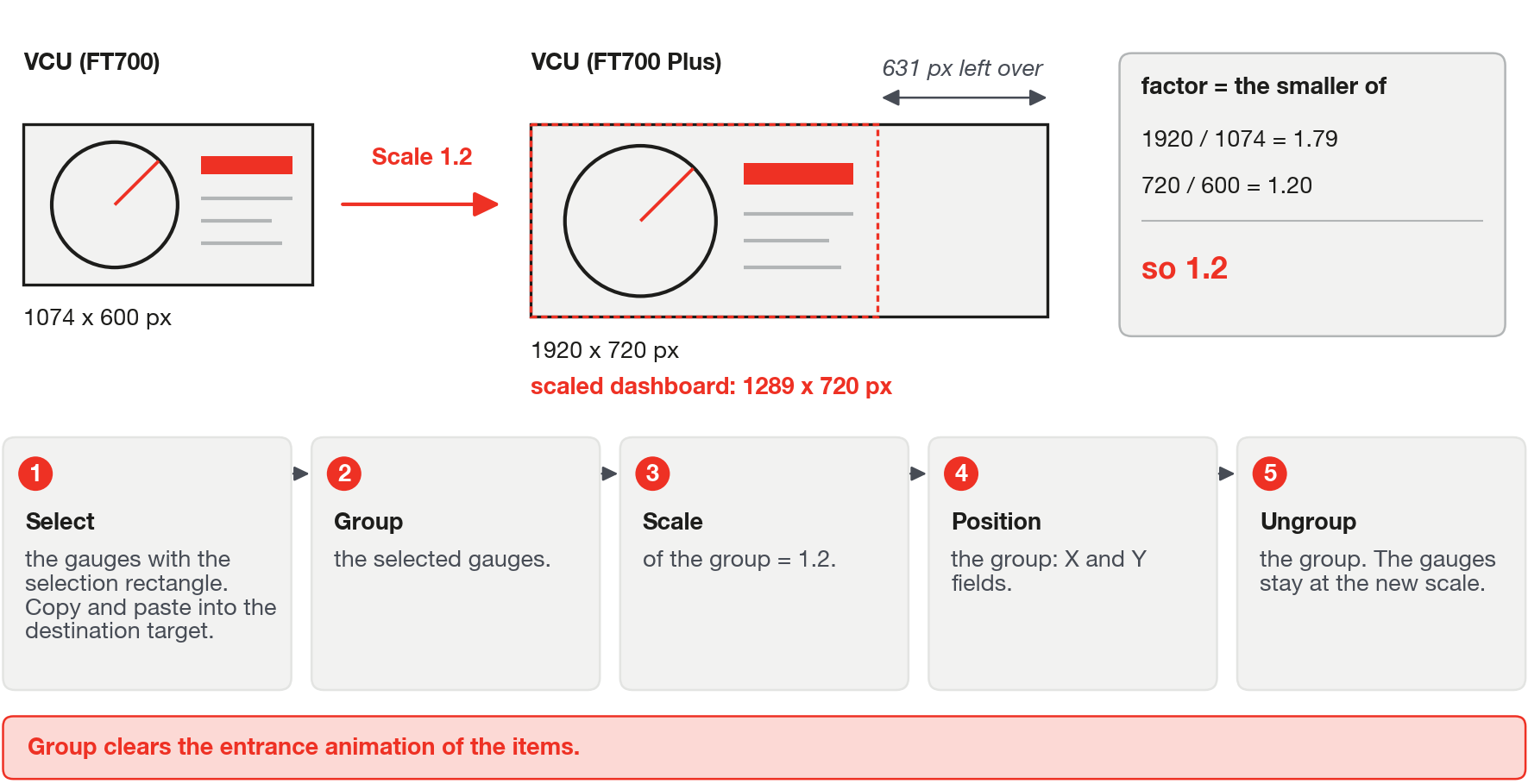
From the 7" to Mobile, the dashboard leaves 536 px free in height: it is a recomposition, not a conversion. To fill the width of the Plus with a 7" dashboard, without distorting the circles, there is no batch tool: do it gauge by gauge, with the new X equal to X times 1.788, the new Y equal to Y times 1.2 and the new Scale equal to the Scale times 1.2.
#What can be surprising
- Group clears the entrance Animation type of each gauge, and Ungroup does not restore it. Note it down beforehand or redo it afterwards.
- Group only joins gauges that are not yet a group. A group that already exists on the screen is not scaled along with them: change its X, Y and Scale by hand.
- A background that fills the canvas is stretched to the destination and the gauges keep their coordinates: if the aspect ratio changes, redo the artwork at the destination resolution.
#11.6 FT470 (no display)
The FT470 has no display. Its dashboard appears on the PC, the phone and the tablet, from the map read from the FT470: edit the Desktop target for the PC, Mobile for the phone and Tablet for the tablet (how to see the dashboard: sections 12.1, 11.3 and 11.4).
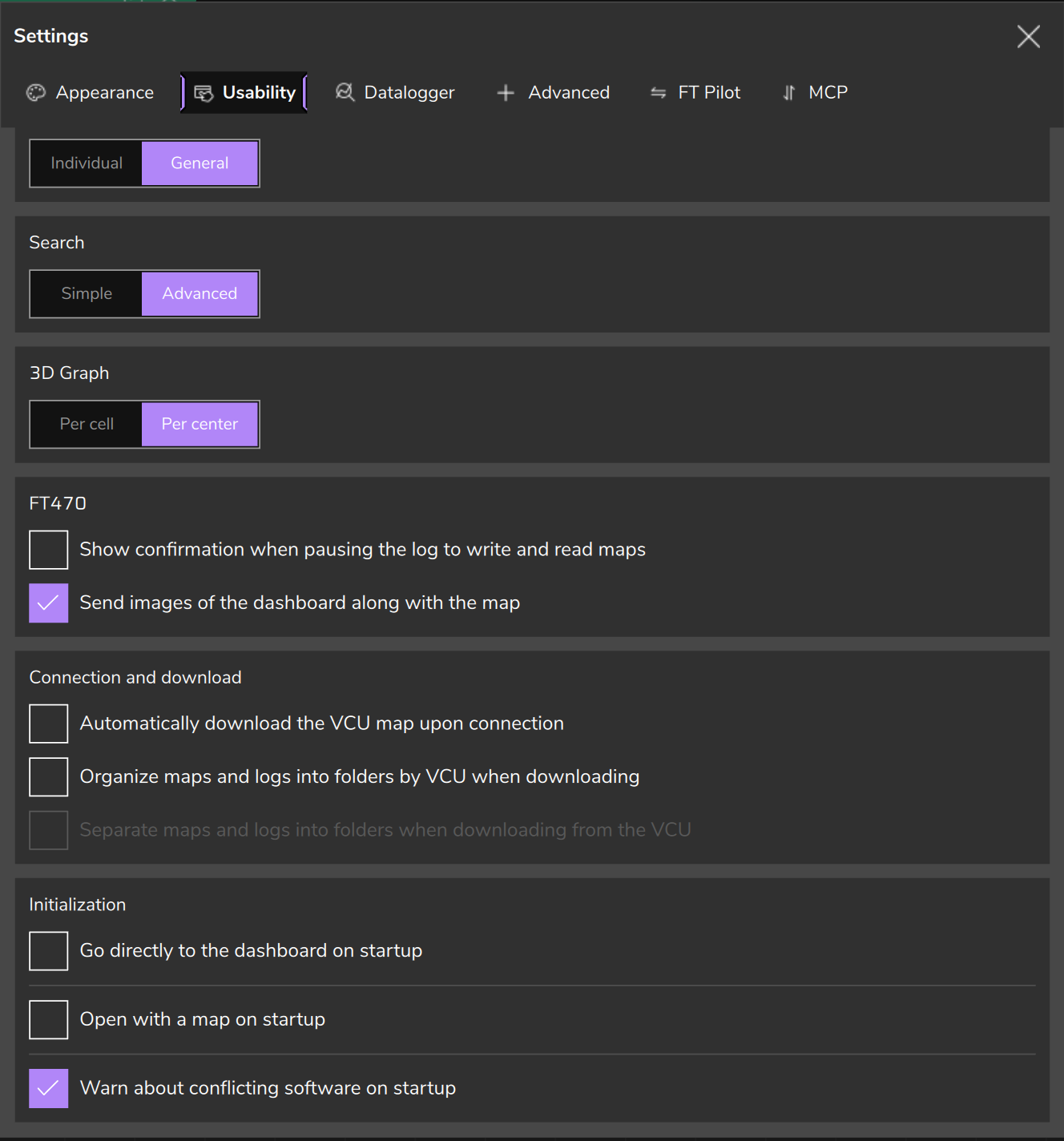
The dashboard images only go into the map sent to the FT470 if the Send images of the dashboard along with the map option is on, as it is by default. On the PC, it is in Preferences, Usability tab, FT470 card. On the phone and the tablet, it is in Settings, and it only appears with an FT470. When off, the app erases the background, images and GIFs of the seven targets from the map it sends, and the FT470 keeps that map: after sending this way, check the dashboard on the phone or the tablet.
What a gauge shows with no data is in section 9.6.