13. Writing, importing, exporting and sharing
The dashboard lives inside the map (section 1.1). There are three ways to move it from one place to another.
| You want to | Route | Where the command is |
|---|---|---|
| Put the dashboard on the unit | Write the map to the VCU | PC: Write. Phone and tablet: Write VCU. On the FT700 itself: Save. |
| Copy screens to another map or give a ready-made dashboard to someone else | Export and import an .ftds file | Top bar of the PC editor. |
| Have a dashboard on the phone or tablet without a map | Local dashboard, an .ftds file stored on the device | Local files, Dashboards tab. |
#13.1 Writing the dashboard to the VCU
The dashboard only appears on the FT700 after the map reaches the unit. The editor's Save on the PC, the phone and the tablet only marks the map as changed (section 4.8): the upload is Write (PC) or Write VCU (phone and tablet). On the FT700 itself, Save already writes to the unit.
#Before writing
- Check the target: VCU (FT700) on the 7" FT700, VCU (FT700 Plus) on the FT700 Plus. A dashboard for another target does not appear on the unit (section 2.2).
- Save the dashboard in the editor and check the open map: the write replaces the VCU's active map (section 2.1).
- Keep a copy of the map and export the important screens as .ftds (section 13.2).
- Go through the list in section 3.3.
#What goes to the unit
- The entire map: the 7 dashboard blocks (all targets), functions, tables and images (background, Pointer PNG, Image, GIF and SVG), including those of targets the unit does not use, such as Tablet. On the 7" FT700 and the FT700 Plus there is no option to send without images.
- The map's name on the unit comes from the map title, not from the file name. If the map came from a file on the PC, Write also rewrites that file.
- With the FT470, Send images of the dashboard along with the map is on by default; when turned off, it removes background, images and GIFs of the 7 targets from the copy sent. On the PC, it is in Preferences (Settings window), Usability tab, FT470 card; on the phone and the tablet, in Settings.
#Writing from the PC
- Connect FuelTech Vision to the unit. With no unit connected, Write is grayed out, unless there is only one unit available: the app connects to it.
- Click Write on the top bar (tooltip Write VCU) and confirm Override VCU?: the unsaved changes of the map open on the VCU will be lost.
- If the map has a password, enter the Map password. If you cancel, nothing is sent (Upload cancelled: map password not entered).
- Follow the progress card until Map written and activated on the VCU and check the dashboard on the unit.
The arrow next to Write opens other options. The Write button and the Write VCU shortcut (Ctrl+Shift+W, no confirmation) do the same as Overwrite current map.
- Overwrite current map (asks for confirmation): replaces the active map. Different name: writes the new name, activates it and only then deletes the old one.
- Save map and activate new map (asks Write VCU and set active?): creates a new file and activates it (a name already in use gets _1, _2 and so on); the old one stays on the unit.
- Save map and not activate (no confirmation): creates a new file without changing the active map; then use Make active on the VCU files screen.
- Segmented overwrite (asks Override VCU (Segmented) ?): rewrites the active map's file, with its name. Does not appear with the FT470.
#Writing from the phone or tablet
Open the map and tap Write VCU. On the phone, the button has only an icon and is enabled with a map open and a unit connected (or only one unit available, to which the app connects). On the tablet, it is enabled with the unit connected even without a map; with no map, tapping does nothing and gives no warning. The upload starts immediately, like Overwrite current map.
#What the unit does on receiving
The unit shows Receiving map, Writing map, Activating map and Map received (error: Failed to activate the map). If the dashboard was open, it reloads it (Loading dashboard may appear). If it was on another screen, it returns to the menu and reopens the screens that the new map does not disable, hide or lock with a password. It does not open the dashboard by itself: open it from the menu and check.
#What blocks or warns before the upload
| Message | When it appears and what to do |
|---|---|
| Password-protected map | Protected functions still locked in this session. Unlock the functions (padlock) and write again; if locked, they would be sent with the default values. |
| Custom Functions memory exceeded | The 10 Custom Functions, added together, exceed the ECU memory (the message shows the usage). Reduce blocks and parameters and write again. |
| Tables above the ECU limit | Active function table above the VCU limit (PC, phone and tablet). No cancels the upload: adjust the table and write again. Yes sends the map with the table truncated. |
| Incompatible VCU version | PC: VCU firmware and app on different versions (the message shows both). With the FT700, any device: firmware below 00.02.24.56. Update the VCU and the app to the same version. |
| Attention! | The map has a list of authorized devices (Single identifiers screen, in the My VCU menu) and this one is not on it. No cancels the upload. |
| Map 'name' written, but not activated on the VCU: reason | The file arrived and activation failed. Use Make active on the VCU files screen; if that does not fix it, write again. |
While an upload is in progress, the app ignores a new request without warning. Wait for it to finish.
#13.2 Exporting a dashboard as .ftds
Export creates an .ftds file with the screens you choose from a single target: the one active in the Device: drop-down. It exists only in the PC editor.
- In the Device: drop-down, choose the target to export and click the export icon on the top bar (tooltip Export dashboard to .ftds file).
- In the Export Dashboard popup, check the screens (all start checked) and click Export, which is only enabled with at least one screen checked.
- In the Save Dashboard dialog, choose the folder and name (filter Dashboard (*.ftds)). The editor shows no success or error message: check the file in the folder.
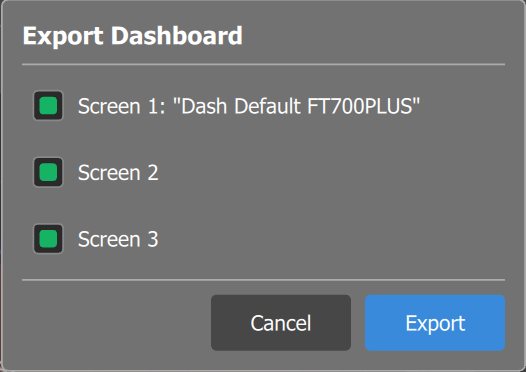
Give the file a name with the target and the date (ft700plus_dashboard_2026-10-13.ftds): the importer does not check the target.
- Included, for each screen checked: gauges with all their settings, title, Day mode background, Night mode background, Activate night mode and the embedded images, GIFs and SVGs (including your logos and photos), plus the target name, the width, the height and a 512 px PNG thumbnail.
- Not included: the screens not checked, the other targets, Number of screens, Initial screen, Input for screen swipe and the rest of the map (functions, measurement units, Day/night mode, cameras). The ECU Button stores only the command; the VCU function that responds stays in the map of whoever receives it.
The IP Camera gauge in the file stores only which camera to show, 1 or 2. The camera's address, user and password stay in the map, in the IP cameras function: before handing a map to someone else, change the camera's factory password (section 8.6).
#13.3 Importing an .ftds in the PC editor
Import brings screens from an .ftds file into the editor's active target, with the destination chosen screen by screen.
- In the Device: drop-down, choose the target that will receive the screens, the same as the file's. If the destination screen has work you want to keep, export it first (section 13.2).
- Click the import icon on the top bar (tooltip Import dashboard from .ftds file) and choose the file in the Import Dashboard dialog (filter Dashboard (*.ftds)).
- The Import Dashboard popup shows Source: (the file's target) and one row per screen. In each row, choose the destination: Do not import or Screen 1 up to the last screen the target already has. By default, screen N of the file goes to Screen N; screens beyond the fourth come as Do not import. Once a destination is chosen, The selected screens will be overwritten appears.
- Click Import (only enabled with at least one destination), check the result and the Command of each ECU Button (section 8.1), use Save changes and write to the VCU (section 13.1).
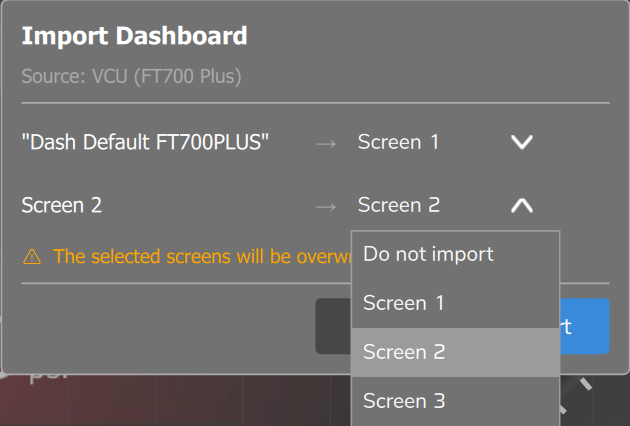
The import replaces each destination screen entirely (gauges, title, backgrounds and Activate night mode). The other screens, the Number of screens and the Initial screen do not change.
The importer does not check the target, does not read width or height, and does not rescale positions. A 1074 x 600 px dashboard imported into the VCU (FT700 Plus) target, which is 1920 x 720 px, occupies 55.9% of the width and 83.3% of the height; a Plus dashboard imported into the VCU (FT700) target ends up with gauges outside the dashboard. Import only files from the same target; to take a dashboard to another target, use section 11.5.
If the file does not open, the Error importing popup shows the cause and the Ok button.
| Message | Cause | What to do |
|---|---|---|
| Could not open file: path. Invalid file: detail | File moved, in use, without permission, truncated or edited by hand. | Copy it again from the source. If you edited it by hand, see section 13.4. |
| Invalid file format (missing mandatory fields) | No screens in the PC format, as in a file saved on the phone or tablet. | The PC only imports single-target files (section 13.4). Export from the PC or redo the dashboard on the PC. |
| Unsupported file version: number | It has the screens key, but the version is not 1. | Use a file exported by the PC editor. |
No message: if the chosen destination does not exist in the target, the screen is not imported. If the file has more screens than the target, increase the Number of screens first.
#13.4 The two .ftds formats
The .ftds extension serves two formats. The PC editor writes and reads one; the phone and the tablet write the other and read both.
| Item | Single target (version 1) | Multiple targets (version 2) |
|---|---|---|
| Who writes it and what it stores | PC editor: one target, with the checked screens, name, width, height and thumbnail. | Phone and tablet editor, Save as local dashboard: all targets, each with width, height and up to 4 screens. No thumbnail. |
| Import in the PC editor | Opens. | Refuses: Invalid file format (missing mandatory fields). |
| Local dashboard on the phone or tablet | Uses the file's screens; when edited, applies the same screens to all targets. | Uses the device's target (or the first one with screens); when edited, applies each target in its own place. |
Target identifiers in the multiple-target file: vcu_e7 (VCU (FT700)), vcu_e12 (VCU (FT700 Plus)), desktop, mobile, tablet, media (Media Device) and video_overlay (Video Overlay, PC only).
#If you generate an .ftds outside the app
Anything that does not meet these reader rules is ignored, almost always without warning.
- Each gauge needs the type field (GaugeType), a number from 0 to 32. The layer order comes from the number at the end of the key name: the lowest one is in front in the Layers list (section 4.4).
- Color is always an object: the k key gives the type (0 theme color, 1 solid, 2 linear gradient, 3 radial, 4 along the axis) and the s key holds up to 4 stops, each with the color as #AARRGGBB and a position from 0 to 1. Example: {"k":1,"s":[["#ff1a1a1a",0]]}. Loose text such as "#RRGGBB" is discarded.
- The background image must start with data:image/jpeg;base64. Always write the decimal places of each gauge (Dec). Minimum, maximum, alerts and limits follow the measurement's base unit: whoever opens the file sees the values in their own device's unit (section 9.3).
#13.5 The dashboard library
Five factory dashboards, 1 screen each, are inside the program and are not kept on disk: VCU (FT700), VCU (FT700 Plus), Desktop, Mobile and Tablet. Media Device and Video Overlay do not have one. The app puts them only in a new map and in a map converted from the PowerFT, and only when Screen 1 of the target has no gauges. There is no button to restore the factory dashboard of an existing map: create a new map, export Screen 1 of the target and import it into your map (sections 13.2 and 13.3).
#13.6 Local dashboard on the phone and tablet
A local dashboard is an .ftds file in the device's Dashboards folder, without a map: the layout comes from the file and the values still come from the VCU's live telemetry. It opens from Local files, Dashboards tab; the map's dashboard opens with the Dash button (phone) or Dashboard (tablet).
- In Local files, Dashboards tab, tap Create and build the dashboard as in the map editor (chapter 4). With no map open, the editor opens on the default dashboard.
- On the floating button, tap the blue save-as button (Save as local dashboard), enter the Name and tap Save. Local dashboard saved appears; the file comes out in the multiple-target format (section 13.4).
- To bring in an .ftds already copied to the device, tap Add on the Dashboards tab and choose the file in Select dashboard (.ftds). Dashboard added appears; without the .ftds extension, Could not add file.
In the item's three-dot menu: Edit (saving with the same name rewrites the file; with a new name, it creates another), Rename and Delete (Delete dashboard, with confirmation). When edited on the phone or tablet, a file exported by the PC changes to the multiple-target format, which the PC editor does not import. On opening, the app scales the dashboard by the width and height saved in the file; without them (an old file), it uses the device's default size and the dashboard may end up crammed into a corner.
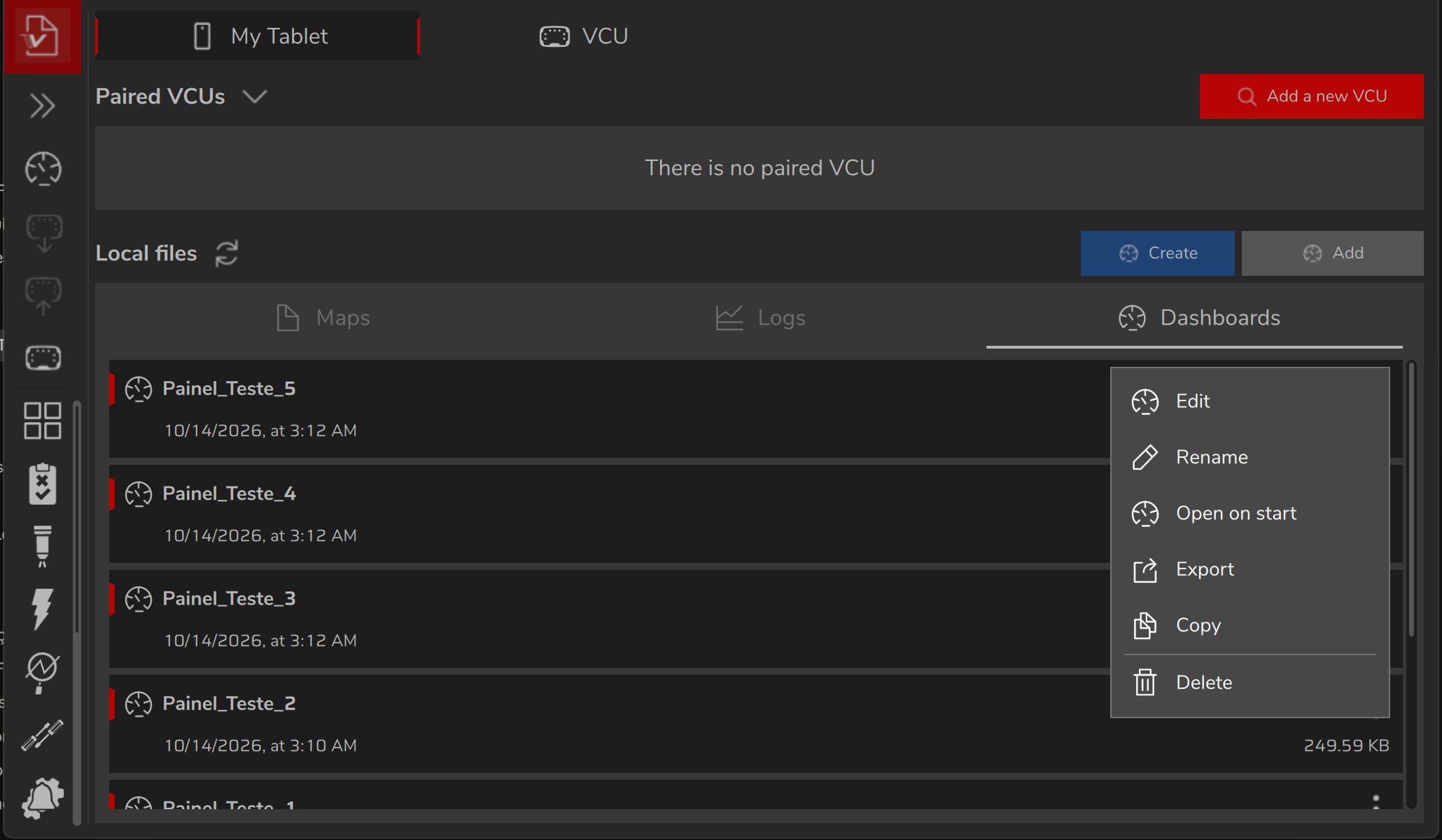
Open on start, in the .ftds file's menu, opens that local dashboard instead of Home (undo with Remove from the start). Open on the map dashboard on startup, in Settings, opens the map's dashboard; checking one option unchecks the other.
#13.7 Sharing a dashboard with someone else
Export the .ftds (section 13.2) and send the file. On the PC, the recipient imports it into the same target (section 13.3); on the phone or tablet, they use Add (section 13.6). The FT700 does not import the file on the unit itself: the dashboard arrives through the map (import on the PC, save and write, section 13.1).
Tell the recipient the file's target and the FuelTech Vision version in which you built the dashboard: a measurement that no longer exists in that version's list leaves Data source empty, as with an old Odometer (choose Odometer or Trip odometer again, section 9.1). The dashboard shows the units of the recipient's device (section 9.3). If you pass on the whole map, it also carries the IP camera settings, with address, user and password (warning in section 8.6). Whoever receives a dashboard checks the Command of each ECU Button before writing (section 8.1).