12. Desktop, Media and Video Overlay
#12.1 Desktop
The Desktop target is the dashboard that FuelTech Vision shows on the PC, at 1920 x 1080 px (default). Width from 320 to 7680 px and Height from 240 to 4320 px. The drawing appears whole and centered, with bars where the window's aspect ratio is different.
- To see the dashboard, open the Dashboard group in the PC menu and choose Dashboard Desktop. The item does not edit.
- To open the dashboard when the app starts, go to Preferences, Usability tab, Initialization card, check Go directly to the dashboard on startup and choose Map dashboard (or FuelTech dashboard (.ftds), with Select file..., for a .ftds with no map).
#12.2 Media Device
The Media Device target is in the Device list, is 1920 x 1080 px (default, adjustable) and has up to 4 screens, but no screen of FuelTech Vision 3.00.54 draws it. It starts empty, and the PC editor opens on it with an FT470 (section 11.6). What you build on it does not appear on any device in this version: do not build a dashboard on it.
#12.3 Video Overlay
The Video Overlay is a PC-only tool: it reads a video and a log (.ftlog), lets you align the two and generates a new MP4 with the gauges of the Video Overlay target on top.
The target only appears in the Device list of the PC editor. It has 1 screen and a single background, solid color only, with no day and night: the Screen tab shows Background, not Day mode background and Night mode background.
#Building the target
- In the PC editor, choose Video Overlay in Device:.
- In Resolution, choose the preset that matches the video: 720p (1280 x 720), 1080p (1920 x 1080), 1440p (2560 x 1440) or 4K (3840 x 2160). For another size, type Width and Height: the list then shows Custom....
- Build the gauges as on any target (chapters 6 and 7). They read the data from the log, not from a VCU.
#Generating the video
- Open Tools on the top bar and choose Video Overlay. The Video Overlay Composer tab opens, which does not require an open map.
- Click Open video (mp4, mov, mkv, avi or webm) and Open log (.ftlog).
- Align them: pause the video on an event you recognize, click the same event on the log chart and click Sync here.
- Mark the section with the IN and OUT markers on the video slider.
- If you want, adjust the output with the gear (Render configurations). Click Render… and choose the file name in Save generated video. The bar shows Output: with the path of the MP4.
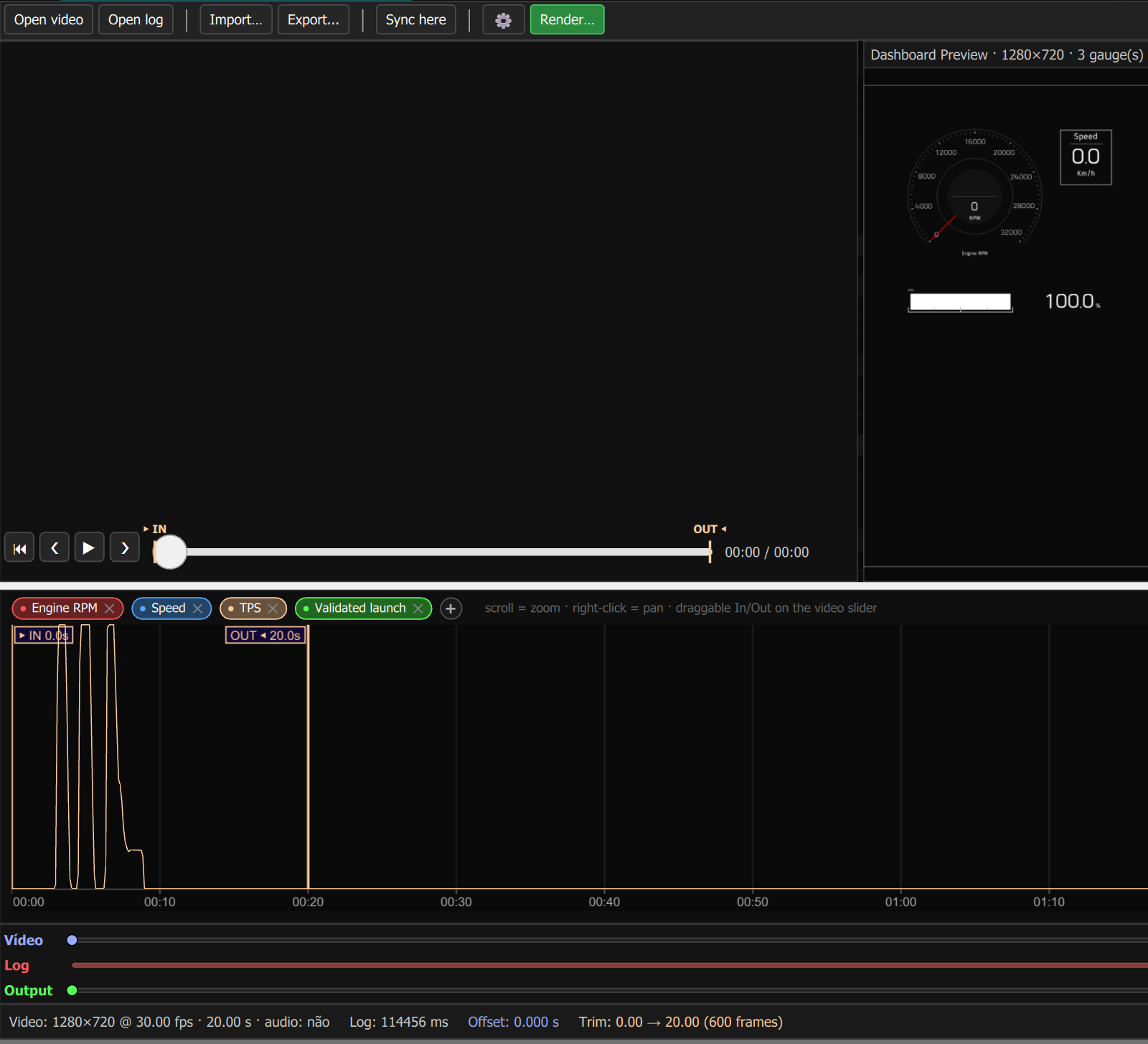
Render… is only active with a video, a log and FFmpeg available: the app looks for ffmpeg and ffprobe (free video programs from the FFmpeg package) in Tools\ffmpeg\bin next to FuelTech Vision and, if it does not find them, in the PATH folders, the list of folders where Windows looks for programs.
#The three modes
The Custom, FT700 and FT700 Plus buttons, in the preview, change what goes on top of the video.
- Custom (default): the free gauges of the Video Overlay target, editable on top of the preview (Edit inline) or in the full editor (DashG2 button, internal name of the dashboard).
- FT700 and FT700 Plus: the unit's frame with the real dashboard of the VCU (FT700) or VCU (FT700 Plus) target inside the screen. The dashboard is the map's and is not edited there: you only move and resize the whole frame.
In Custom mode the background of the Video Overlay target is always transparent in the generated video: the background is the video itself, and the solid color chosen in the Screen tab should not appear in the result. Check it in the generated video. For a colored background, use the Chroma key.
#Render configurations
- Resize output: from 10% to 100%, in steps of 5.
- Chroma key: generates the MP4 with a solid color in place of the video, so that another editing program cuts out that color and puts the gauges over another image. Default color: green (00FF00). With it, the generated video has no audio; without it, it carries the audio of the original video.
Export... saves a .ftvo with the configuration and the dashboard of the Video Overlay target (not those of the FT700 and the Plus). Import… asks for confirmation and overwrites the current dashboard of the target; if the file has no dashboard, the current gauges stay.