3. Quick route: from the open map to the dashboard on the FT700
#3.1 The steps
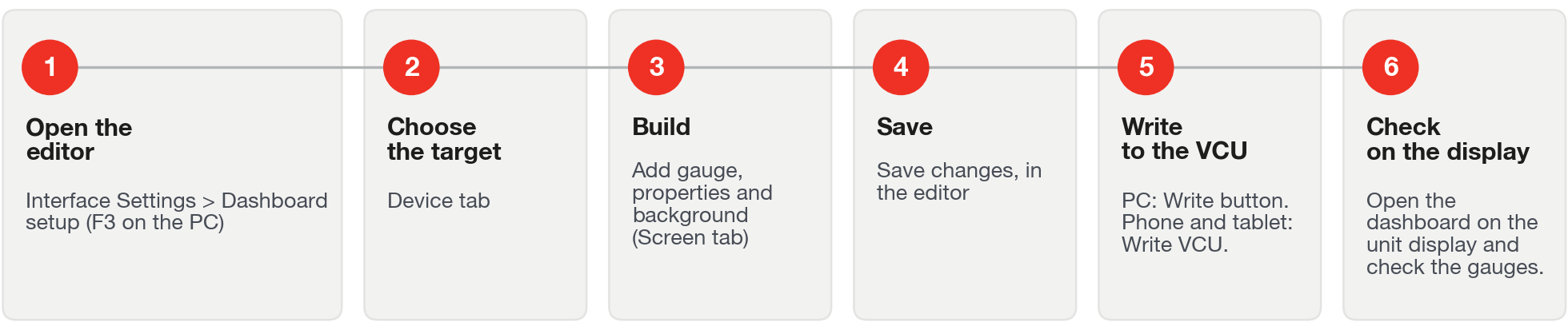
#Route A: from the PC (the complete route)
- Keep a copy of the map (section 2.1) and open it. In My VCU > Map options, check ECU model (section 2.2).
- Open the editor: Interface Settings > Dashboard setup (6th item), or press F3 with the map loaded.
- In the Device: list, choose VCU (FT700) or VCU (FT700 Plus).
- Build the dashboard: the background in the Screen tab and the gauges with Add gauge, each with its own data (chapters 4 to 9).
- Click Save changes (the confirm icon in the top bar).
- With the unit connected, click Write (tooltip Write VCU) and confirm Override VCU?. The PC shows Uploading map, Compressing map, Writing to VCU, Applying map in the VCU and Map written and activated on the VCU.
- On the unit, open the dashboard if it was not open. The unit shows Receiving map, Writing map, Activating map and Map received.
- Check the dashboard on the unit: screens, background, screen switching and behavior with the engine running (section 10.7).
The Write button and the Write VCU shortcut (Ctrl+Shift+W, default, no confirmation) use Overwrite mode. The other modes are on the arrow next to the button (section 13.1).
#Route B: on the FT700 or FT700 Plus itself
- On the unit, open Interface > Dashboard setup (5th item).
- Build the dashboard by touch, with the floating button (section 4.3). There is no target choice, and images do not load: use the ones already in the map.
- On the floating button, tap the save icon: the map is written to the unit immediately.
- Tap the exit icon. If there is an unsaved change, There are unsaved changes! appears: Cancel stays in the editor, No discards and exits, Yes saves and exits.
- Open the dashboard from the unit's menu and check the screens.
#Route C: from the phone or the tablet
- Connect to the VCU and confirm which map is open on the device: that is the one that will be written (section 2.1).
- Open the editor: Interface Settings (phone) or Interface (tablet) > Dashboard setup (5th item).
- On the floating button, open Select target and choose VCU (FT700) or VCU (FT700 Plus), for the unit's dashboard.
- Build the dashboard (chapters 4 to 9). The background and the images can be loaded here.
- On the floating button, tap the save icon: the map is marked as changed, and nothing goes to the VCU.
- Tap Write VCU, on the side bar (on the phone, icon only).
- On the unit, open the dashboard if it was not open. It shows Receiving map and Map received.
#What the unit does when it receives the map
- If activating the new map fails, the unit shows Failed to activate the map. If the write works and the activation does not, the PC warns Map 'name' written, but not activated on the VCU, followed by the reason.
- With the dashboard open, the unit reloads it by itself (Loading dashboard may appear). With another screen open, it goes to the menu and reopens the same screens; it does not open the dashboard by itself.
Always write with the engine off and the car stopped, and check the dashboard before starting the engine (section 13.1).
#When the map will not send
The app does not send with Password-protected map (a protected function still locked), Custom Functions memory exceeded and Incompatible VCU version (section 2.1). With Tables above the ECU limit, it asks Yes or No, on the PC, the phone and the tablet, and not on the FT700 itself: if in doubt, choose No (section 13.1). While a send is in progress, a new request is ignored, with no warning.
The editor does not limit the number of gauges or the file size of the images, and the app does not tell how much the unit accepts: with many images or GIFs, write on the bench and check that the dashboard opens before delivering.
#3.2 Make the FT700 open straight on the dashboard
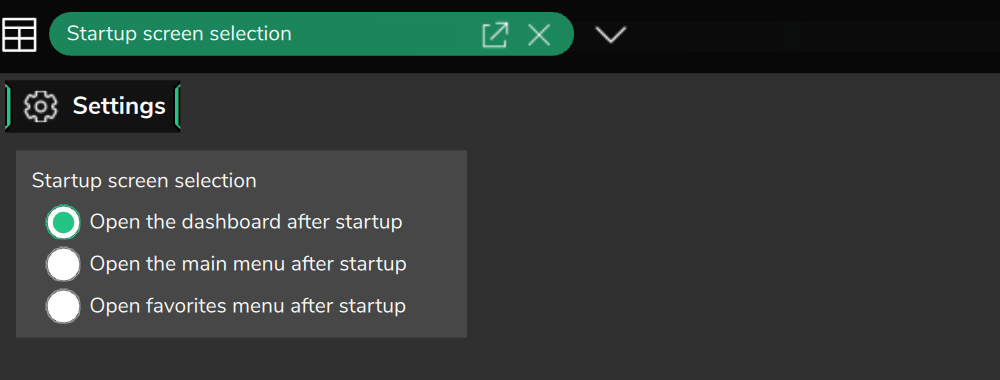
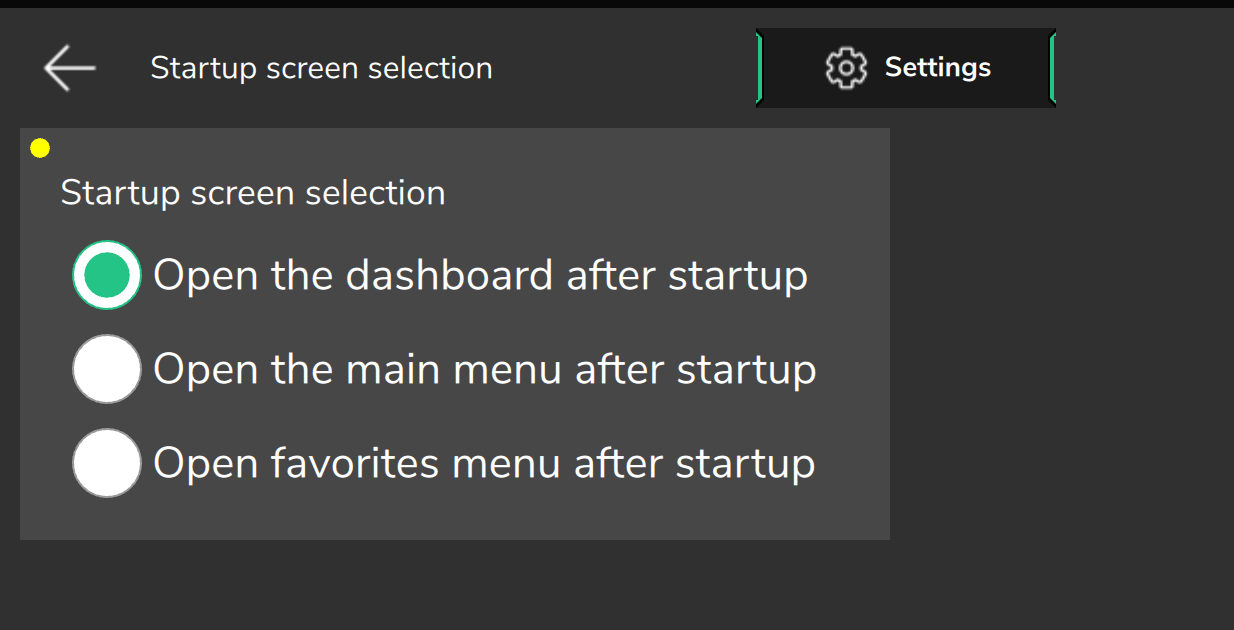
By default, the FT700 and the FT700 Plus open on the main menu at power-on. To open straight on the dashboard:
- In the Interface group of the unit (on the PC, Interface Settings), open Startup screen selection, right after Dashboard setup.
- Select Open the dashboard after startup (the other options are Open the main menu after startup, the default, and Open favorites menu after startup). It applies the next time the unit powers on.
- On the PC, send the option to the VCU with Write: it is part of the map.
On the phone and the tablet, Open on the map dashboard on startup (in Settings, it comes turned off) opens the map's dashboard, and Open on start, on the .ftds file in the Dashboards tab of the Home, opens a local dashboard. The two options are exclusive: selecting one clears the other. With neither, the app opens the Home.
#3.3 Before writing to a car
Check each item before Write or Write VCU:
- Versions: VCU firmware from 00.02.24.56 on and, on the PC, in the same version as the app (section 2.1).
- Map copy kept, and the map open on the device is the one that must go to the unit (section 2.1).
- Right target, including with an FT700 Plus map open on the PC without the unit (section 2.2).
- Engine off and car stopped while writing to the VCU (section 13.1).
- The send takes the entire map and replaces the active one; on the phone and the tablet, without confirmation (section 13.1).
- What a new or imported dashboard does on its own: the Command of each ECU Button (a new one defaults to engine start, section 8.1), the shift point of each Shift (section 6.5) and the two limits of each light (section 7.5).
- Map from an earlier version opened: each target checked (section 2.1).
After writing, check the dashboard on the unit with the key on and the engine off, and then with the engine running (section 10.7).